
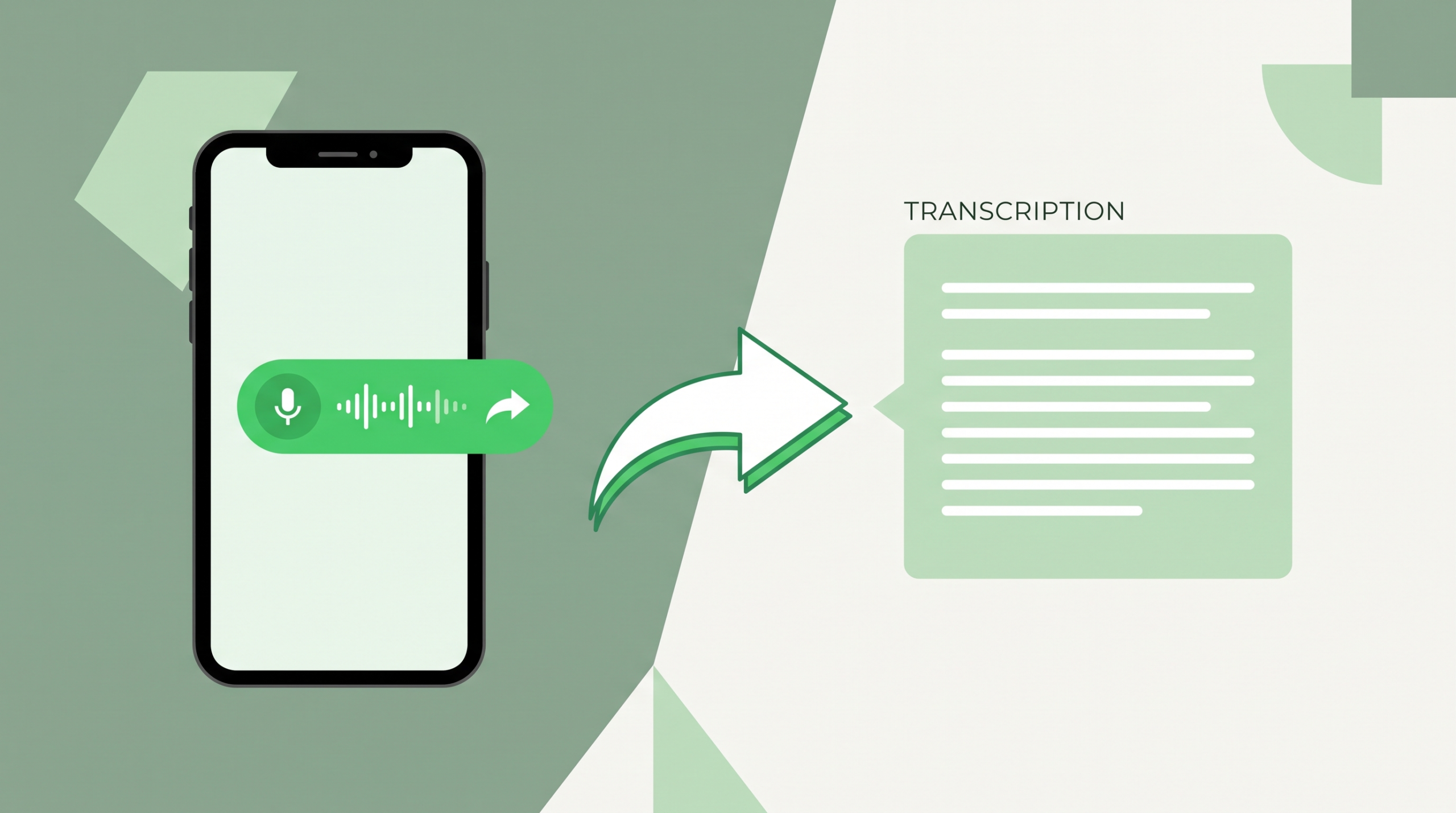
You open WhatsApp and see it: a 4-minute voice note from a group chat, a client, or a relative who never quite gets to the point. You don’t have headphones, you’re in a meeting, or you simply don’t have 4 minutes to spare right now. If this happens to you regularly, converting voice notes to text with AI is one of the simplest productivity fixes you can make in 2026 — and it’s completely free to do.
This guide covers the best free AI tools that can transcribe WhatsApp voice notes into readable text, how they actually work, and which one fits your specific situation, whether that’s a one-off voice note or a daily habit of long audio messages from work or family.
Why Convert Voice Notes to Text?
Before the tool list, here’s why this small habit change matters more than it seems:
- Skim instead of listening. Reading takes a fraction of the time listening does, especially for rambling or unstructured messages.
- Works in silent environments. Meetings, classes, or public transport — you can’t always play audio out loud.
- Searchable later. Text can be searched; a voice note buried in a long chat thread usually can’t be found again without replaying it.
- Accessibility. Some people process written text more easily than spoken audio, especially across accents or background noise.
- Follow-up made easy. Copying a written summary into a task list or reply is far easier than transcribing manually from memory.
1. Whisper Transcribe (via web apps using OpenAI Whisper)
OpenAI’s Whisper model powers many of the free transcription tools available today, and several web apps let you upload or forward a WhatsApp voice note directly for transcription with strong accuracy across accents and background noise.
Why it works well for voice notes:
Whisper-based tools handle informal, conversational speech (the way people actually talk in voice notes) noticeably better than older transcription engines, which were built more for clear dictation.
Best for:
Accurately transcribing casual, unstructured voice notes, including ones with background noise.
Limitations:
Free web wrappers around Whisper often cap file length or daily usage, and you typically need to manually save and re-upload the voice note file rather than transcribing directly inside WhatsApp.
2. Google Recorder (Android)
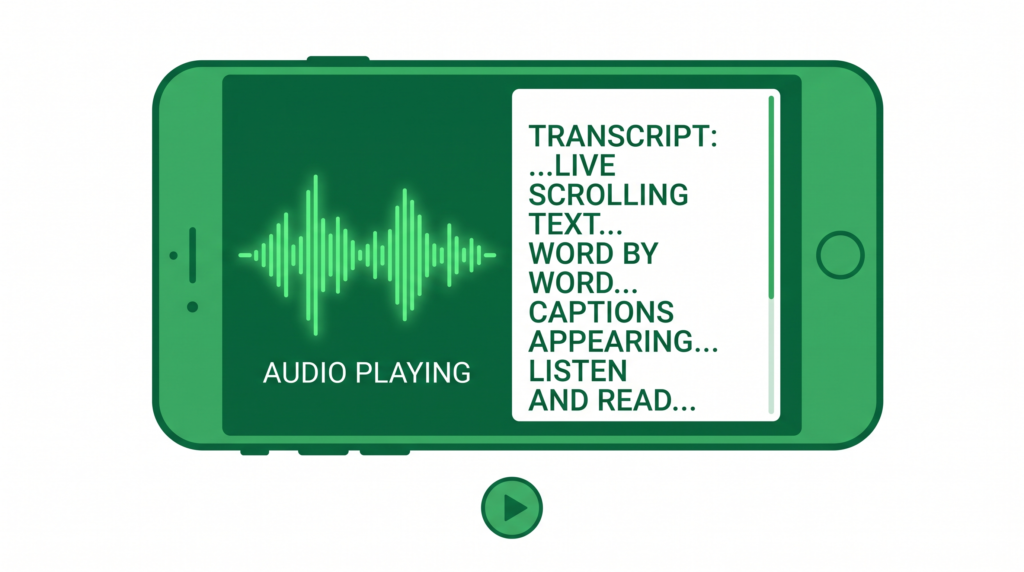
If you’re on an Android phone, Google Recorder can transcribe audio in real time, including audio played from another app. Play the WhatsApp voice note out loud near your phone with the recorder running, and it transcribes as it plays.
Why it works well for voice notes:
It’s already built into many Android phones and works entirely offline on supported devices — no uploading files anywhere.
Best for:
Android users who want a quick, no-signup way to transcribe without leaving their phone.
Limitations:
Requires playing the audio out loud (not silent), and availability depends on your specific Android device and region.
3. Otter.ai
Otter is best known for meeting transcription, but its free tier also supports uploading standalone audio files, including voice notes exported from WhatsApp, and returns a clean, readable transcript within seconds.
Why it works well for voice notes:
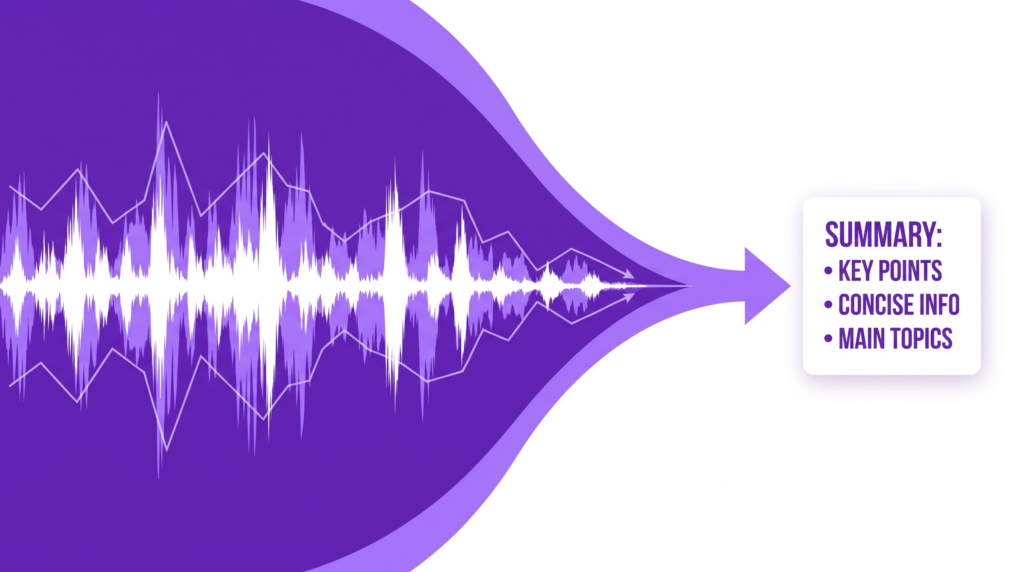
Beyond plain transcription, Otter also auto-generates a summary of longer recordings, which is genuinely useful for long rambling voice notes where you just need the gist.
Best for:
Longer voice notes (2+ minutes) where you want both a full transcript and a quick summary.
Limitations:
The free plan caps total transcription minutes per month, so heavy daily use may hit a ceiling.
4. VoiceToNotes.ai
VoiceToNotes.ai goes a step further than plain transcription — it can also organise transcribed voice notes into structured notes, action items, or summaries, which is useful if the voice note contains instructions or a task list rather than casual conversation.
Why it works well for voice notes:
Work-related voice notes (e.g., a boss listing 5 things to do) often bury the actual action items inside rambling speech. This tool is built specifically to extract that structure.
Best for:
Work or client voice notes containing tasks, instructions, or action items you need to act on.
Limitations:
Free tier usage caps apply, and it works best with clearer audio rather than very noisy backgrounds.
5. Voicenotes
Voicenotes combines transcription with a searchable AI memory of everything you’ve recorded or forwarded to it, letting you later ask, “What did they say about the meeting time?” instead of rereading the whole transcript.
Why it works well for voice notes:
If you receive many voice notes over time (from a group chat or a recurring contact), being able to search across all of them later is more useful than transcribing each one in isolation.
Best for:
People who regularly receive many voice notes and want a searchable history, not just one-off transcripts.
Limitations:
Free tier usage limits apply, and the “second brain” search feature works best once you’ve built up a reasonable volume of transcribed notes.

6. Microsoft Word / Google Docs Voice Typing (Playback Method)
Both Microsoft Word (via Dictate) and Google Docs (via Voice Typing) can transcribe audio played aloud through your speakers while the microphone listens, similar to the Google Recorder method above, but usable on desktop across Windows and Mac.
Why it works well for voice notes:
If you’re already working in a document and don’t want to install a separate app, this method uses tools you likely already have.
Best for:
Desktop users who want a no-install option using software they already use daily.
Limitations:
Requires playing audio out loud near your microphone, and background noise or low speaker volume can noticeably hurt accuracy.
7. ElevenLabs Scribe
ElevenLabs, known primarily for AI voice generation, also offers a transcription tool (Scribe) supporting a very wide range of languages, making it a strong option if your voice notes come in a language other than English.
Why it works well for voice notes:
Multilingual households and international teams often exchange voice notes in a mix of languages, and Scribe’s broad language support handles this better than many English-first transcription tools.
Best for:
Voice notes in non-English languages or households/teams that mix multiple languages in conversation.
Limitations:
Free tier usage caps apply, and very short voice notes may not showcase its multilingual strengths as clearly as longer ones.
Quick Comparison: Which Tool Fits Your Situation?
| Situation | Best Tool |
|---|---|
| Casual, noisy voice notes need accurate transcription. | Whisper-based tools |
| You’re on Android and want zero setup. | Google Recorder |
| Long voice notes, want transcript + summary | Otter.ai |
| Work voice notes with tasks/instructions. | VoiceToNotes.ai |
| You get many voice notes and want to search past ones. | Voicenotes |
| No new app, using desktop tools you already have | Word/Docs Voice Typing |
| Voice notes in non-English languages | ElevenLabs Scribe |
How to Actually Transcribe a WhatsApp Voice Note
The general process is similar across most tools:
- Save the voice note as a file. In WhatsApp, tap and hold the voice note, then choose “Forward” or use the three-dot menu to save it to your phone’s storage.
- Upload it to your chosen tool. Most web-based tools (Otter, VoiceToNotes.ai, Voicenotes, and ElevenLabs Scribe) let you directly upload the saved audio file.
- Or use the playback method. For Google Recorder or desktop voice typing, simply play the voice note out loud near your microphone while the transcription tool is actively listening.
- Review the transcript. Skim for any obviously misheard words, especially names or numbers, before relying on it for something important.
- Copy or export. Most tools let you copy the transcript directly, so you can paste it into a task list, reply, or notes app.
Common Mistakes to Avoid
Relying on playback in noisy environments. If you’re using the “play audio out loud” method, background noise on your end (not just the original recording) can significantly hurt accuracy. Use headphones plugged into a second device, or a quiet room, for best results.
Not checking names and numbers. AI transcription is generally strong on everyday conversational speech, but names, addresses, and numbers are the most common source of small errors. Always double-check these before acting on them.
Ignoring privacy for sensitive voice notes. If a voice note contains sensitive personal or financial information, check the tool’s privacy policy about how uploaded audio is stored or used before uploading it to a third-party service.
Assuming one tool fits every situation. A quick 10-second voice note doesn’t need the same tool as a 5-minute work briefing. Match the tool to the length and purpose of the message, as outlined in the comparison table above.
Frequently Asked Questions
Can I transcribe a WhatsApp voice note directly inside the app?
Not natively as of 2026 — WhatsApp doesn’t include built-in transcription. You’ll need to save the voice note and use one of the tools above, either by uploading the file or playing it back near a transcription tool.
Do these tools work for voice notes in Urdu or other regional languages?
Multilingual support varies by tool. ElevenLabs Scribe and Whisper-based tools tend to have the broadest language coverage, while some tools are more optimised for English. Check each tool’s supported language list before relying on it for non-English audio.
Is it safe to upload personal voice notes to these tools?
Most reputable tools process audio securely, but policies vary on whether your audio is stored or used for model training. For sensitive content, review the specific tool’s privacy policy, or use an on-device option like Google Recorder that doesn’t require uploading anything.
Which option is completely free with no signup at all?
Google Recorder (on supported Android devices) and the desktop voice Typing methods generally require no account signup at all, since they use tools built into the operating system.
The Bottom Line
Converting WhatsApp voice notes to text is a small habit that adds up to real time saved, especially if you regularly receive long or frequent voice messages. If you want the simplest possible option and you’re on Android, start with Google Recorder. If you’re processing longer or more frequent voice notes — especially work-related ones with tasks buried inside — use Otter. Or VoiceToNotes. AI will save you noticeably more time.
Looking for more free AI productivity tools? Check out our guides on turning meeting recordings into notes and the best free AI tools to summarise PDF notes.