If you’ve spent any time on Upwork lately, you know the feeling: you find a job that looks perfect, click on it excited, and it already has “50+ proposals”. So how are freelancers realistically keeping up with that volume while still writing something that doesn’t sound like everyone else’s copy-pasted pitch?
Mostly, they’re not typing every word from scratch — they’re using AI to build a first draft fast, then editing it into something that actually sounds like them. This guide walks through exactly how to do that using free tools (ChatGPT or Claude), plus the specific things that separate a proposal that gets read from one that gets deleted in two seconds.
Quick Answer
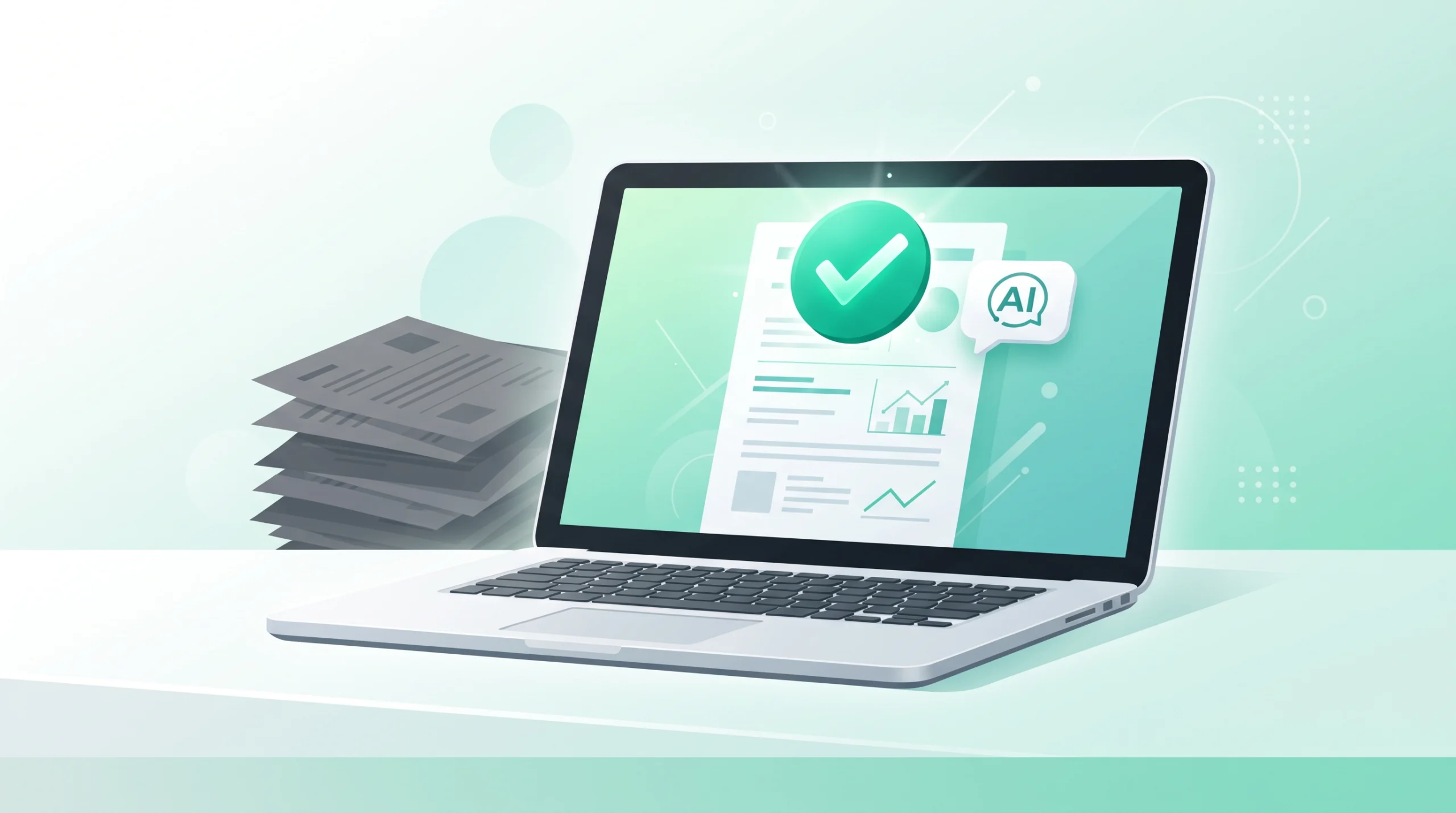
You don’t need a paid, specialised tool to write strong Upwork proposals with AI — a well-structured prompt in free ChatGPT or Claude gets you most of the way there. The real difference between a proposal that gets replies and one that gets ignored isn’t the tool; it’s the structure: open with the client’s actual problem (not your credentials), keep it under 150 words, skip robotic AI phrases like “delve” and “I am writing to express,” and end with a low-pressure question instead of a big ask. Paste the job description into the prompt below, edit the first two lines by hand before submitting, and you’re most of the way to a genuinely competitive proposal.
Why Clients Delete Generic AI Proposals Instantly
Upwork clients see a huge volume of proposals, and most of them share the same tells: “Dear Hiring Manager,” an opening paragraph about the freelancer instead of the project, and stiff words like “delve,” “moreover,” or “testament to my skills.” These patterns are recognisable within the first line, and clients have learnt to skip past them fast.
The proposals that actually get replies do the opposite — they open by naming the client’s specific problem, sound like a real person wrote them, and end with something easy to respond to.
The Free Prompt to Use in ChatGPT or Claude
Paste this into a new chat, then paste the job description right after it:
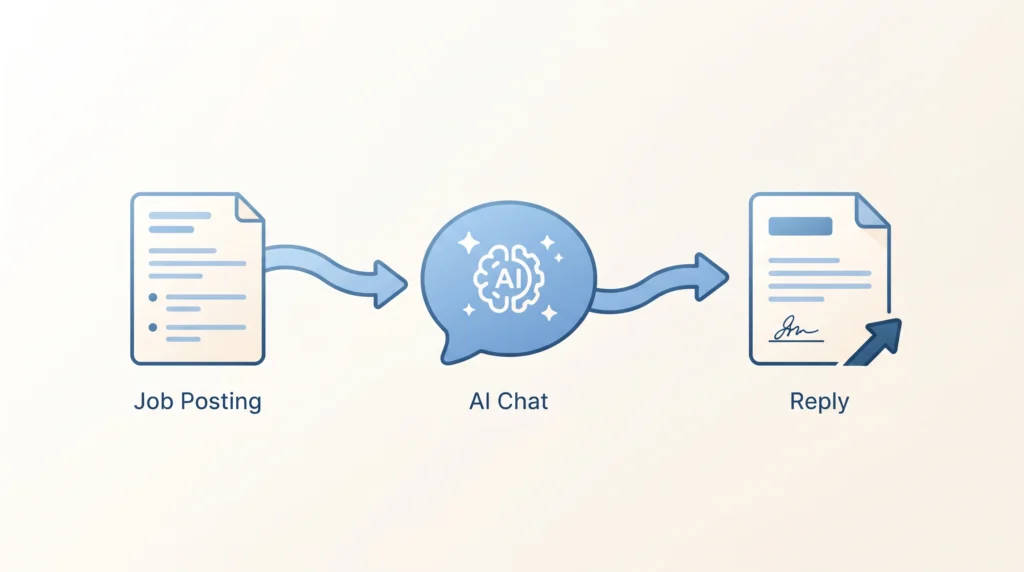
“Act as an experienced freelancer writing an Upwork proposal. I’ll give you a job posting below. Write a short, customised cover letter under 150 words based on it, following these rules: 1) Don’t use generic greetings like ‘Dear Hiring Manager’ — open by directly naming their specific project problem or goal. 2) Write in a casual, confident, conversational tone, not a formal one. 3) Avoid robotic phrases like ‘delve’, ‘testament’, ‘moreover’, or ‘excited to apply’. 4) Include exactly one sentence referencing a relevant example from my background: [briefly describe your relevant experience here]. 5) End with a simple, direct question about their timeline or needs to invite a reply. Here’s the job posting: [paste it]”
This works in both ChatGPT and Claude’s free tiers — the structure of the prompt matters more than which specific model you use.
Step 1: Always Rewrite the First Two Sentences Yourself
Upwork’s dashboard only shows a client the first couple of lines of your proposal before they click in. If those lines read like a template, most clients won’t bother opening the rest. After AI generates your draft, always personalise the opening line by hand — reference something specific from the job post (a tool they mentioned, a specific problem they described) that makes it obvious you actually read their listing, not just skimmed it.
Step 2: Look for the Client’s Name Before You Submit
Scroll down to the client’s history and past reviews on the job posting. Previous freelancers often mention the client by name (“John was great to work with”). If you find it, start your proposal with “Hi John” instead of no greeting at all — it’s a small detail, but it signals you actually looked at their profile rather than mass-applying.
Step 3: End With a Low-Pressure Ask, Not a Big One
The goal of a proposal isn’t to close the entire contract in one message — it’s to get a reply. Avoid ending with something that feels like a big commitment. Ask. Instead, offer something small and easy to say yes to: “I put together a quick 3-point approach for this — want to hop on a 5-minute call tomorrow to see if it fits?” That kind of low-friction close performs noticeably better than a generic “Looking forward to hearing from you”.
Should You Pay for a Specialised Proposal Tool?
There are paid, Upwork-specific proposal generators on the market that promise faster workflows, saved portfolio snippets, or automated client research. Some may genuinely save time if you’re applying to many jobs a day. But be aware: a lot of the “best AI Upwork tool” content ranking online right now is published directly by the tools themselves under different comparison-style articles, essentially reviewing themselves as #1. Treat any specific paid tool recommendation — including ones you find elsewhere — with healthy scepticism, and start with the free method above before paying for anything. If you’re applying to dozens of jobs weekly and the manual copy-paste genuinely becomes the bottleneck, that’s the point where evaluating a paid tool becomes worth your time — not before.
Common Mistakes to Avoid
Submitting the AI draft without editing the opening. This is the single most common reason a decent AI draft still gets ignored — the first two lines are the only ones a client sees before deciding to open the rest.
Letting AI include a list of your certifications or work history upfront. Clients care about their problem first. Credentials belong later in the conversation, not the opening of a cold proposal.
Asking for too much in the closing line. A proposal that jumps straight to “let’s schedule the full project kickoff” feels presumptuous. A small, easy next step gets more replies.
Sending the exact same AI draft to every job with minor tweaks. Clients can sometimes recognise a template even after light editing. Always reference something specific from that particular job posting.
Ignoring the client’s actual budget and history signals. Before spending a proposal (and Connects) on a job, check the client’s payment history and past reviews — a well-written proposal still isn’t worth submitting to an unreliable client.
Frequently Asked Questions
Will clients know I used AI to write my proposal?
If you follow this process — rewriting the opening yourself and editing for your own voice — the result shouldn’t read as obviously AI-generated. The bigger issue isn’t AI detection; it’s whether the proposal actually sounds specific to their job or generic enough to have been sent to anyone.
Is it against Upwork’s rules to use AI for proposals?
Using AI to draft a proposal, you then review and personalise it before submitting. This is standard practice and not against Upwork’s terms. What matters is that the final submission is accurate and genuinely represents your ability to do the work.
How long should an Upwork proposal actually be?
Shorter generally performs better — aim for under 150-200 words. Long proposals are less likely to be fully read, especially since only the first couple of lines show before a client clicks in.
Do I need ChatGPT Plus or Claude Pro for this to work well?
No — the free tiers of both handle this prompt structure well. Paid tiers mainly help if you’re applying to a very high volume of jobs daily and want faster processing, not because the free tier produces meaningfully worse proposals for this specific task.
What’s the biggest factor in getting a reply, more than the writing itself?
Applying early (within the first hour or two of a job posting) and being genuinely qualified for what’s being asked matter as much as the proposal’s writing quality. A well-written proposal on the wrong-fit job, or one submitted after 40 others, still faces long odds regardless of how it’s written.
The Bottom Line
You don’t need a specialised, paid tool to write Upwork proposals that get replies — a well-structured prompt in free ChatGPT or Claude, combined with a hand-edited opening line and a low-pressure closing question, gets you most of the way there. Be sceptical of “best AI Upwork tool” rankings online, since a surprising number of them are published by the tools reviewing themselves. Start free, and only consider paying for something specialised once manual copy-pasting genuinely becomes your bottleneck.
On September 23, 2026, OpenAI brought its desktop-only “Work” tab to the ChatGPT mobile app, controllable entirely by voice. Plus and Pro users can now say a task out loud — “summarise my unread emails”, “draft a reply to this message”, “create a one-page project update” — and ChatGPT will complete it as a real multi-step task, not just answer a spoken question. To use it: update your app, open the Work tab, tap the voice icon, and speak your task directly instead of typing it. Free and Go users get a lighter version through plugins and connected apps instead of the full Work tab.
Last verified: September 26, 2026. Feature availability rolls out gradually, so if you don’t see it yet, force-update your app and check again in a few days.
In late September 2026, OpenAI brought a feature that was previously desktop-only to the ChatGPT mobile app: the ability to trigger real, multi-step work tasks — drafting a document, writing an email, summarising a pile of messages — just by talking to your phone. This isn’t the same as the voice conversations ChatGPT already had; this is voice controlling an actual agent that goes and does the task, not just chats back.
If you’ve opened the app and seen a “Work” tab that wasn’t there before, this guide walks through exactly what it does and how to actually use it for real tasks, not just the announcement headlines you’ve probably already seen.
Key Takeaways
Voice-triggered work tasks (not just voice chat) are now on mobile, not just desktop
Available to Plus and Pro subscribers through the Work tab; Free and Go users get plugins/connected apps instead
Works best for quick, well-defined tasks during commutes or between meetings — not for detailed documents needing careful wording
Always review before sending — voice can misread names, numbers, and technical terms, especially in noisy environments
Tasks started on mobile can be continued on desktop without losing context
What Actually Changed
Before this update, the Work tab — where ChatGPT can create documents, build simple websites, generate presentations, or browse the web to complete a task — was only available on desktop. Now it’s on mobile too, and you can trigger it entirely by voice instead of typing.
A few specific things came with this update:
Voice-triggered work tasks. Say what you need — draft an email, summarise your unread Slack messages, create a document — and ChatGPT starts working on it in the Work tab.
Richer voice responses. Voice conversations now come with more detailed text output alongside the spoken reply, instead of just a short spoken summary.
Easier switching between voice and text. You can start talking, then switch to typing mid-conversation without losing context.
Cross-device continuation. Start a task on your phone during your commute, then pick it up on the desktop later without starting over.
This is available to Plus and Pro subscribers through the Work tab. Free and Go users get access to plugins and connected apps instead, which is a lighter version of the same idea.
Before vs. After: What Actually Changed
Before (pre-Sept 23, 2026)
After (Current)
Work tab access
Desktop only
Desktop + mobile
Triggering a task
Typing required
Voice or typing
Voice conversations
Spoken reply only
Spoken reply + richer text output
Switching modes
Limited
Switch voice ↔ text mid-conversation.
Device continuity
Task tied to one device
Start on mobile, continue on desktop.
Available to
N/A
Plus & Pro (Work tab); Free & Go (plugins/connected apps)
Step 1: Update the App and Find the Work Tab
Make sure your ChatGPT app is updated to the latest version — this feature won’t appear on an outdated build. Once updated, look for the Work tab, typically in the bottom navigation or accessible from the main chat screen depending on your account type.
If you don’t see it and you’re on a Plus or Pro plan, check that your app has fully updated and restart it — rollouts like this sometimes reach accounts gradually over the first week or two.
Step 2: Start a Voice Session for a Real Task
Rather than starting a casual voice chat, go directly into the Work tab and use the voice icon there. This tells ChatGPT you want it to actually complete something, not just talk.
Example prompt to say out loud:
“Summarise the emails I got yesterday, and only tell me the ones that actually need a reply.”
This is different from asking a general voice question — it triggers an actual multi-step task (checking your connected inbox, filtering, summarising) rather than a single spoken answer.
Step 3: Use It for Real Commute or In-Between Moments
The genuinely useful part of this update is handling small work tasks during moments when typing isn’t practical — walking, commuting, between meetings.
Practical examples to try:
Clearing emails on your commute: “Summarise my unread emails from today and flag anything that needs a reply before noon.”
Prepping for a meeting in 5 minutes: “Summarise the notes for my 2 PM meeting into three key points I need to know.”
Drafting a quick reply: “Draft a reply to [person]’s email saying I can meet Thursday instead of Wednesday.”
Turning a voice memo into a document: “I’m going to describe a project update out loud — turn it into a clean written summary I can send to my team.”
Step 4: Review Before Sending Anything
This is the step easy to skip when a task feels “done” the moment ChatGPT finishes talking. Always open the actual document, email draft, or summary in the Work tab and read it before sending or acting on it — voice-triggered tasks can occasionally misinterpret a name, date, or detail from a spoken instruction, especially in a noisy environment like a commute.
Step 5: Continue on Desktop When You’re Back at Your Computer
If a task you started on your phone needs more detailed editing — formatting a document properly, refining a longer email — open ChatGPT on desktop and continue the same conversation rather than starting fresh. This cross-device continuation is one of the more genuinely useful parts of the update, since it means voice on mobile can be the “quick capture” step and desktop can be the “polish” step.
What This Is Good For (and What It Isn’t)
Good for:
Quick, well-defined tasks you’d otherwise put off until you’re at a computer
Summarising or triaging messages when you don’t have time to read everything
Capturing an idea or update by voice before you forget it, then turning it into a document later
Not ideal for:
Highly detailed or sensitive documents where you need to review every word as it’s written, not after the fact
Noisy environments where voice recognition is more likely to introduce errors
Tasks requiring nuanced judgement calls you’d rather make by typing and thinking through carefully
Who This Actually Helps (and Who Can Skip It For Now)
This is genuinely useful if:
You regularly have small work tasks piling up during commutes, walks, or gaps between meetings
You already use ChatGPT’s Work tab on desktop and want the same capability without opening a laptop
You’re comfortable reviewing and editing AI-drafted content rather than sending it unedited
You can skip it for now if:
You’re on a Free or Go plan and mainly want document/email drafting — you’ll hit the plugin/connected-app ceiling quickly compared to the full Work tab
Your work involves highly sensitive documents you’d rather draft carefully by typing from the start
You’re often in loud environments where voice accuracy would cost you more time correcting errors than it saves
Common Mistakes to Avoid
Treating every voice-triggered draft as final. Voice tasks are a fast first pass, not a finished product — always review before sending, especially for anything going to a client, boss, or important contact.
Trying to dictate very long, complex documents in one go. For anything requiring detailed structure, it’s often faster to use voice for a rough capture, then refine and organise it with text afterward, either on the same device or after switching to desktop.
Using it in loud environments and expecting perfect accuracy. Like any voice tool, background noise increases the chance of misheard words, particularly names, numbers, and technical terms — double-check these specifically.
Not checking which plan you’re on. If you don’t see the Work tab, confirm you’re on a Plus or Pro plan — Free and Go users have a different, more limited feature set (plugins and connected apps) rather than the full Work tab experience.
Frequently Asked Questions
Do I need a paid ChatGPT plan to use this?
Yes — the full Work tab with voice-triggered tasks is currently available to Plus and Pro subscribers. Free and Go users get access to plugins and connected apps instead, which covers some similar ground but isn’t the same full agentic Work tab experience.
Does this work on both iPhone and Android?
Yes, the update applies to the ChatGPT mobile app generally, though as with most staged rollouts, make sure your app is fully updated to the latest version if you don’t see the feature immediately.
Is this the same as the ChatGPT voice mode that already existed?
No — standard voice conversations are for talking back and forth with ChatGPT. This update specifically brings the Work tab’s ability to complete actual multi-step tasks (drafting documents, summarising messages, building simple sites) to mobile, triggered by voice instead of typing.
Can it access my actual email and Slack messages?
Only if you’ve connected those accounts/apps within ChatGPT. Without connecting them, tasks referencing “my emails” or “my Slack messages” won’t have anything real to work from.
Is my data safe when I connect apps like email or Slack?
Connecting any app to an AI assistant means it can access what you’ve given it permission to see. Review OpenAI’s specific data handling policy for connected apps before linking anything containing sensitive personal or business information, and only connect what you’re comfortable with.
The Bottom Line
This update turns small, easy-to-postpone work tasks — clearing emails, prepping for a meeting, capturing a quick idea — into something you can knock out by talking during moments you’d otherwise waste. It’s not a replacement for careful, detailed work at a desk, but for the in-between moments of a busy day, it’s a genuinely useful addition. Start with low-stakes tasks like email summaries to get a feel for it, then build up to using it for actual drafts once you trust how it performs for your specific use cases.
Search “AI grading tools for teachers”, and you’ll find dozens of near-identical lists naming the same 10 tools—MagicSchool, CoGrader, Gradescope, and EssayGrader—each with a line on pricing and features. What almost none of them show is the actual workflow: how to use AI so feedback comes back faster without turning into the generic, copy-paste comments students learn to ignore.
This guide walks through a real process — the exact order of steps and what to ask AI at each stage — so a stack of 30 essays or problem sets can go from “days of grading” to a same-day turnaround, while the feedback students actually receive still sounds like it came from you, not a template.
Why Most AI-Assisted Feedback Feels Generic
The most common failure mode is asking AI to “grade this essay and give feedback” with no other context. Without a rubric, without knowing what you already told the class to focus on, and without your own voice as a reference, AI defaults to the most statistically average feedback possible — “good use of transitions”, “consider adding more detail” — comments so generic they could apply to almost any essay ever written.
The fix is the same principle that worked for lesson planning: give AI real structure and context to work from, rather than a vague one-line request.
Step 1: Build (or Reuse) a Clear Rubric First
Before grading anything, make sure you have a specific rubric — not just a general sense of what “good” looks like. If you don’t already have one, AI can help you build it quickly.
What to ask:
“Create a 4-point analytic rubric for a [grade level] essay on [topic/assignment type] [the specific skills you’re assessing, e.g., thesis clarity, evidence use, organisation, grammar].” Describe what work looks like at each of the 4 levels for each category.”
Having this rubric ready means every piece of feedback that follows is anchored to specific, defensible criteria — not a vague overall impression that’s harder to justify to a student or parent who asks why a grade was given.
Step 2: Grade a Small Batch Yourself First to Set the Tone
Before handing anything to AI, grade 3-5 papers yourself using the rubric. This isn’t wasted time — it’s how you’ll show AI what “your” feedback voice actually sounds like in Step 3, and it gives you a real sense of the range of work you’re dealing with before automating anything.
Step 3: Feed AI Your Own Graded Examples as a Style Reference
This is the step that makes the biggest difference in whether AI feedback sounds like a template or sounds like you. Paste in 2-3 of your own hand-graded examples before asking it to help with the rest.
What to ask:
“Here are 3 examples of essays I graded myself, with my actual written feedback for each: [paste examples and your feedback]. Notice my tone, the way I balance praise with critique, and how specific I get. I’ll paste more student work next — match this same style and level of specificity.”
Without this step, AI feedback tends to default to a much softer, more hedging tone than most teachers actually use. Giving it real examples of your own voice fixes this immediately.
Step 4: Grade the Rest in Batches, Not All at Once
Rather than pasting all 30 papers into one long prompt, work through them in smaller batches (5-8 at a time), reviewing each batch before moving to the next. This keeps quality consistent and makes it easier to catch when AI starts drifting from the rubric or your tone.
What to ask (per batch):
“Using the rubric and my feedback style from before, grade these [X] essays: [paste them]. For each one, give a score per rubric category, 2-3 sentences of specific feedback referencing actual details from their writing, and one clear, actionable next step for revision.”
Step 5: Review Every AI-Drafted Comment Before It Goes to a Student
This step is non-negotiable, and it’s the difference between using AI responsibly and outsourcing your professional judgement entirely. Read through each draft comment and check:
Does the feedback reference something actually true and specific about this student’s work, not a generic observation that could apply to anyone?
Does the tone match how you’d actually talk to this particular student?
Is the score consistent with the rubric and with how you graded your own initial batch?
Edit anything that feels off before it reaches a student. This review pass is typically much faster than writing from scratch, but it’s still real work — the goal is speed with oversight, not full automation.
Step 6: Personalise the Highest-Stakes Feedback Yourself
For a handful of students each round — someone who’s struggling significantly, someone showing real improvement, or a particularly sensitive situation — write that feedback yourself, or at minimum, heavily rewrite the AI draft with specific personal context AI wouldn’t know (like a conversation you had with the student or their history over the semester).
What to ask if you want AI’s help drafting this type but with your own added context:
“Help me phrase feedback for a student who’s shown real improvement since last month but is still below grade level. Here’s what I actually want to say: [your own notes/context]. Keep my own points; just help me phrase it clearly and kindly.”
Step 7: Look for Class-Wide Patterns Before Returning Everything
Once a full set is graded, ask AI to help you spot patterns across the whole class — genuinely useful information for planning your next lesson, not just individual feedback.
What to ask:
“Based on the rubric scores across this full set of [X] students, what are the 2-3 most common weaknesses showing up across the class? Suggest one whole-class mini-lesson that could address the most common issue.”
This turns a grading session into planning input for next week, rather than a one-way task that ends once grades are entered.
The Full Workflow at a Glance
Build or reuse a specific rubric — 10-15 min
Grade 3-5 papers yourself to set the tone and range — 20-30 min
Feed AI your own graded examples as a style reference — 5 min
Grade the rest in batches of 5-8, reviewing each batch — varies by class size
Review every comment before sending — non-negotiable, but fast
Personalise high-stakes feedback yourself — 10-15 min for a handful of students
Ask AI to identify class-wide patterns for next lesson planning — 5-10 min
For a typical class of 25-30 essays, teachers using this process commonly report cutting total grading time significantly compared to writing every comment from scratch, while keeping feedback specific enough that students can tell it’s not generic.
Common Mistakes That Undermine This Process
Skipping the “your own examples” step. This is the single biggest lever for making AI feedback sound less generic. Without it, expect noticeably softer, more hedging language than you’d normally use.
Batch-processing an entire class without any review. Even with a good rubric and style reference, AI can occasionally misread a student’s argument or miss sarcasm/nuance in creative writing. A quick human check before sending catches this.
Using the exact same rubric language for every single comment. If every student gets feedback structured identically, it starts to feel templated even when technically accurate. Vary the framing slightly from batch to batch, or explicitly ask AI to avoid repeating the same opening phrase across students.
Forgetting to personalise the students who need it most. The students most likely to be discouraged by generic feedback are often the ones who most need to feel individually seen. Don’t let the highest-stakes feedback be the most automated.
Not using the pattern-spotting step. Skipping Step 7 means missing genuinely useful information about what to reteach, treating grading as a dead-end task instead of input for your next lesson.
Frequently Asked Questions
Is it fair to students if a teacher uses AI to help grade their work?
Used the way outlined here—with a clear rubric, human review of every comment, and personal attention for high-stakes cases—this is fundamentally similar to using any other tool to speed up a process, as long as final judgement and accountability stay with the teacher. Being transparent with students or parents that AI assists (not replaces) your grading process is generally good practice.
Will AI catch plagiarism or AI-written student submissions during this process?
Not reliably as a byproduct of grading — plagiarism and AI detection require separate, dedicated tools, and even those have real accuracy limitations. Don’t treat this grading workflow as a plagiarism check.
What if a student or parent disputes an AI-assisted grade?
Because every score in this workflow is tied to a specific rubric you built and reviewed, you can point to exactly which criteria were met or missed — the same as any rubric-based grading process, AI-assisted or not.
Does this work for subjective subjects like creative writing, not just essays with a clear rubric?
Yes, though creative work benefits even more from the “your own examples” step in Step 3, since tone and voice matter more in creative feedback than in more structured writing, and AI needs a stronger reference point to match that nuance.
The Bottom Line
Faster grading and personal, specific feedback aren’t actually in conflict — the workflow that gets both is giving AI real structure (a rubric), real style guidance (your own graded examples), and a genuine human review pass before anything reaches a student. Skipping any of those three elements is what produces the generic, template-feeling feedback teachers rightly worry about when they hear “AI grading”.
Search “best AI tools for teachers”, and you’ll find dozens of near-identical lists naming the same 8-10 tools—MagicSchool, Diffit, Brisk, and Canva—with a line or two on what each one does. What’s missing from almost every one of these guides is the part that actually matters: how do you combine these tools into an actual weekly planning session that doesn’t eat your entire Sunday?
This guide skips the tool list and walks through a real workflow: the exact order of steps, what to ask each tool, and how a full week of lesson plans, worksheets, and quizzes can realistically come together in under 2 hours instead of the 6-10 hours manual planning often takes.
Why a Workflow Beats a Tool List
Knowing that a tool exists doesn’t tell you how to use it well. Most teachers who try AI tools for the first time open one, type a vague prompt like “make me a lesson plan”, get something generic, and conclude AI isn’t actually useful for real classroom prep. The problem usually isn’t the tool — it’s the absence of a process that mirrors how planning actually happens: starting broad (the week’s goals), then narrowing (daily objectives), then generating materials (worksheets, slides, quizzes) that all connect back to those goals.
Here’s that process, step by step.
Step 1: Map the Week’s Learning Goals First (15 minutes)
Before generating anything, get clear on what the week needs to accomplish. Use a general-purpose AI tool like ChatGPT or Claude for this step, not a specialised lesson-plan tool — you want flexible thinking here, not templated output yet.
What to ask:
“I’m teaching [subject/grade level, e.g., 5th grade math] this week. The topic is [topic]. Help me break this into 4-5 daily learning objectives that build on each other logically and align with Common Core (or my state’s standards if different), ending with [end-of-week goal, e.g., a quiz or project].”
Review the output critically — does the sequence actually make pedagogical sense for your students? Adjust the order or combine days if needed. This step gives you a skeleton the rest of the week hangs on, rather than planning each day in isolation.
Step 2: Generate Daily Lesson Plans from That Skeleton (20-30 minutes)
With your daily objectives set, move to a dedicated lesson-planning tool like MagicSchool, Eduaide, or Brisk, and generate each day’s plan directly from the objective you already defined — not from scratch.
What to ask (repeat per day):
“Create a lesson plan for [grade/subject] covering this objective: [objective from Step 1]. Include a warm-up activity, main instruction, a guided practice activity, and a quick formative check for understanding. Keep it to a 45-50 minute class period, matching a typical US middle/high school schedule.”
Because you already have clear, sequenced objectives from Step 1, these daily prompts produce much more coherent plans than typing “lesson plan for [topic]” with no other context — the tool has an actual target to build toward.
Step 3: Generate Supporting Materials in Batches, Not One at a Time (30-40 minutes)
Rather than making a worksheet, then a slide deck, then a quiz for Monday before moving to Tuesday, batch similar tasks across the whole week. This is faster and keeps your materials consistent in style and difficulty across days.
Worksheets — ask for all 5 days at once:
“Based on these 5 daily objectives [paste them], generate a short practice worksheet for each day, appropriate for [grade level]. Keep formatting consistent across all 5.”
Slides — ask per lesson using a tool like Canva AI or Curipod:
“Create a simple slide outline for today’s lesson on [objective], with one slide per key point and a closing slide with a discussion question.”
End-of-week quiz — use Diffit or a quiz-specific tool:
“Create a 10-question quiz covering this week’s objectives. Include a mix of multiple choice and short answer, and align difficulty to [grade level].”
Batching this way means you’re not context-switching between five different “modes” of thinking all week — you do all the worksheet-thinking together, all the quiz-thinking together, and so on.
Step 4: Differentiate for Different Student Levels (15-20 minutes)
This is the step most rushed manual planning skips entirely, and it’s where AI genuinely saves meaningful time rather than just convenience. Use a tool built specifically for differentiation, like Diffit, to adapt your core materials for students who need more support or more challenge.
What to ask:
“Here’s this week’s main worksheet: [paste text]. Create a simplified version for students reading below grade level and an extension version with a more challenging follow-up question for advanced students.”
Doing this manually for every worksheet across a full week is often the first thing cut when time runs short. Automating it here means differentiation actually happens consistently, not just when there’s spare time.
Step 5: Draft Parent Communication While It’s Fresh (10 minutes)
While the week’s content is fresh in your mind, generate a short parent update or newsletter blurb summarising what’s being covered — a task that often gets pushed to “later” and never happens.
What to ask:
“Write a short, friendly paragraph for a weekly parent newsletter summarising what we’re covering this week.” Keep it to 3-4 sentences, warm tone, and no jargon.”
Step 6: Do One Final Coherence Check (10 minutes)
Before the week begins, read back through the full sequence — objectives, daily plans, worksheets, and quizzes — as a single continuous story rather than five separate outputs. AI-generated materials for different days can occasionally feel slightly disconnected even when built from the same objectives, so this final human pass matters.
What to check:
Does each day’s warm-up connect back to the previous day’s closing activity?
Does the difficulty curve make sense from Monday through Friday?
Does the end-of-week quiz actually test what was taught, not just the topic in general?
Does everything still align with the Common Core or state standard you started with in Step 1?
A Quick Note on Student Data Privacy (FERPA)
If you’re uploading any real student work, IEP details, or grades into an AI tool as part of this workflow—for example, when differentiating a worksheet based on an actual student’s reading level—check that the tool is FERPA-compliant before doing so. Tools built specifically for US classrooms, like MagicSchool and Brisk, generally advertise FERPA and COPPA compliance directly on their site; general-purpose tools may not be designed for that use case. When in doubt, generate materials using general grade-level descriptions (“a student reading two grade levels below”) rather than uploading actual student names, records, or identifiable work.
This step usually takes far less time than it sounds, precisely because Steps 1-5 already built everything from the same shared skeleton rather than generating each piece independently.
Putting It All Together: The Full Sequence
Map weekly objectives (ChatGPT/Claude) — 15 min
Generate daily lesson plans from those objectives (MagicSchool/Brisk/Eduaide) — 20-30 min
Batch-generate worksheets, slides, and quizzes (Canva/Curipod/Diffit) — 30-40 min
Differentiate materials for different student levels (Diffit) — 15-20 min
Draft parent communication — 10 min
Final coherence check — 10 min
Total: roughly 1.5-2 hours for a full week of connected, differentiated lesson content — compared to the 6-10 hours many teachers report spending on manual weekly planning.
Common Mistakes That Slow This Process Down
Starting with materials instead of objectives. Jumping straight to “make me a worksheet” without first defining the week’s learning goals (Step 1) produces disconnected materials that don’t build toward anything coherent.
Regenerating from scratch instead of building on previous outputs. Each step in this workflow deliberately feeds the previous step’s output into the next prompt. Starting each new tool with no context from earlier steps loses the coherence that makes this fast.
Skipping the differentiation step to save time. It’s tempting to cut Step 4 when short on time, but this is often exactly where AI saves the most real value compared to manual planning, since differentiation is usually the first casualty of a rushed manual process.
Not doing a final read-through. Materials generated across multiple tools and multiple prompts can occasionally drift in tone or difficulty. The 10-minute coherence check at the end catches this before it reaches students.
Using one tool for everything. General-purpose tools like ChatGPT are great for open-ended thinking (Step 1) but not always as fast as purpose-built tools for structured output like quizzes or differentiated worksheets. Matching the right tool to the right step, as outlined above, is faster than forcing one tool to do every job.
Frequently Asked Questions
Do I need paid versions of these tools to follow this workflow?
No — MagicSchool, Brisk, Diffit, Canva for Education, and ChatGPT/Claude all offer usable free tiers that cover this entire workflow. Paid tiers mainly add higher usage limits and advanced features once you’re planning very frequently or need to save/reuse templates.
Does this workflow work for every subject, or mainly for ones like English/Social Studies?
The core process (objectives → plans → materials → differentiation) applies across subjects, though math and science teachers may want to double-check any AI-generated numeric problems or formulas for accuracy before using them, since occasional errors are more consequential in those subjects.
What if my school requires standards alignment (like Common Core or a specific curriculum framework)?
Include your specific standard or framework directly in your Step 1 prompt — e.g., “align this to [specific standard code]” — most modern AI tools, especially education-specific ones like MagicSchool and Eduaide, handle standards alignment well when explicitly asked.
Can this workflow work for a substitute or first-year teacher with no existing materials?
Yes — this workflow is arguably more valuable for someone starting from zero, since it replaces the “blank page” problem entirely. Experienced teachers may adapt fewer steps since they already have some reusable materials from previous years.
The Bottom Line
The real value of AI for teacher planning isn’t any single tool — it’s a workflow where each step builds on the last, rather than generating five disconnected pieces of content and hoping they fit together. Start with clear weekly objectives, let those objectives drive every downstream tool, and finish with a short coherence check. Followed consistently, this cuts weekly planning from most of a weekend down to under two focused hours.
Most “best AI tools for freelancers” guides assume you’re already earning enough to comfortably stack $20-100/month subscriptions across five different tools. If you’re just starting — still landing your first few clients, still building a portfolio — that math doesn’t work yet. Spending $150/month on tools before you’re consistently earning $150/month from freelancing is backwards.
The good news: you don’t need paid tools to get real value from AI in 2026. This guide covers the best genuinely free AI tools for beginner freelancers, what they’re actually useful for, and how to use them without hitting frustrating free-tier walls.
Why This List Is Different
Most freelancer AI guides list a paid tool, mention “there’s a free trial”, and move on. Here, every tool below has a free tier that’s actually usable for real client work, not just a taste before a paywall. We’ve also focused on tools where the free tier doesn’t cripple the core feature you actually need.
1. ChatGPT (Free Version)
ChatGPT’s free tier remains genuinely useful for drafting emails, brainstorming project ideas, writing first drafts of proposals, and researching a client’s industry before a call.
Best for: General-purpose writing, brainstorming, and research across almost any freelance niche.
Free tier reality check: You’ll occasionally hit usage limits during high-demand periods and won’t get the newest model versions instantly, but for a beginner’s typical workload, the free tier covers most day-to-day tasks.
2. Claude (Free Version)
Claude’s free tier handles longer documents well — useful if you’re drafting a detailed proposal, editing a client’s existing content, or need help thinking through a more complex project scope.
Best for: Longer writing tasks, editing, and situations where you need to feed in more context (like an existing client brief) than a quick chatbot exchange.
Free tier reality check: Usage resets periodically rather than being unlimited, so it’s best used deliberately for tasks that actually need the extra context length, not casual back-and-forth chat.
3. Canva (Free Plan)
Canva’s free plan includes a genuinely useful set of AI features — background remover, Magic Design templates, and basic text-to-image — enough to produce client-ready social graphics, simple mockups, and presentation slides without a design background.
Best for: Freelancers offering social media management, basic design, or presentation work who don’t have (or need) a full design tool budget yet.
Free tier reality check: Some premium templates and elements are locked, but the core AI design tools work fully on the free plan.
4. Grammarly (Free Plan)
Client-facing communication needs to be clean, and Grammarly’s free plan catches the grammar and clarity issues that quietly undermine a beginner freelancer’s professionalism in proposals and emails.
Best for: Every freelancer, regardless of niche — this is the one tool with almost no reason to skip.
Free tier reality check: Advanced tone and clarity rewrites are behind the paid tier, but core grammar and spelling checks are fully free and cover most of what you need early on.
5. Otter.ai (Free Plan)
Otter’s free plan includes a real monthly transcription allowance, useful for recording and transcribing client discovery calls so you can focus on the conversation instead of frantically typing notes.
Best for: Freelancers who do client calls regularly and want accurate notes without manual transcription.
Free tier reality check: Monthly transcription minutes are capped, so save it for calls where accurate notes genuinely matter, rather than every casual chat.
6. Perplexity AI (Free Version)
Perplexity’s free version gives you cited, verifiable research answers — genuinely useful when you need to quickly understand a new client’s industry before a pitch call, without falling down a rabbit hole of open browser tabs.
Best for: Fast, credible research before client calls or when writing about an unfamiliar topic.
Free tier reality check: The free version covers typical research needs well; the paid tier mainly adds more advanced search depth most beginners won’t need immediately.
7. Google NotebookLM (Free)
NotebookLM is free with a Google account and lets you upload a client’s existing documents, brand guidelines, or reference material, then ask questions across all of it — useful for quickly getting up to speed on a new client’s business.
Best for: Quickly digesting a new client’s materials (style guides, past content, briefs) before starting work.
Free tier reality check: Genuinely free with reasonable usage limits — one of the more generous tools on this list.
8. CapCut (Free Version)
For freelancers dabbling in video editing or short-form content, CapCut’s free version includes AI-powered auto-captions, background removal, and basic editing tools that used to require paid software.
Best for: Beginner freelancers offering short-form video editing, reels, or basic content editing services.
Free tier reality check: Some premium effects and export options require a paid plan, but the core AI editing features are free to use.
Quick Comparison: Which Tool for Which Task
Task
Best Free Tool
Drafting proposals and emails
ChatGPT or Claude
Editing longer client documents
Claude
Social graphics and simple design
Canva
Cleaning up client communication
Grammarly
Transcribing client calls
Otter.ai
Researching a new client’s industry
Perplexity AI
Getting up to speed on a client’s materials
Google NotebookLM
Short-form video editing
CapCut
How to Get the Most Out of Free Tiers (Without Hitting Walls)
Use the right tool for the right task, not one tool for everything. Free-tier limits reset per tool, so spreading tasks across ChatGPT, Claude, and Perplexity (rather than doing everything in one) means you rarely hit a wall on any single tool.
Batch similar tasks together. Instead of transcribing calls throughout the week as they happen, save Otter’s monthly minutes for your most important client calls specifically, and take manual notes for quick, informal ones.
Don’t upgrade until you feel the limit regularly, not occasionally. A single frustrating day hitting a usage cap doesn’t mean you need to pay — track whether it’s a recurring problem over a few weeks before deciding a paid plan is worth it.
Reinvest your first AI-assisted earnings into one paid tool, not five. Once freelancing income becomes consistent, upgrade the single tool you use most heavily first, rather than spreading a small budget thin across many subscriptions.
Common Mistakes Beginner Freelancers Make With AI Tools
Sending AI-drafted proposals without personalising them. Clients can often tell when a proposal feels generic. Always edit in specific details about their actual project before sending anything AI helped draft.
Assuming free tools are lower quality across the board. For most day-to-day freelance writing and research tasks, free tiers of tools like ChatGPT, Claude, and Perplexity are genuinely capable — the paid tiers mainly add capacity and advanced features, not a fundamentally different quality level for basic tasks.
Not disclosing AI use when a client specifically asks about your process. If a client directly asks whether you use AI tools, answer honestly. Using AI to draft and then personally editing and refining the work is a normal, professional workflow, not something to hide.
Overcommitting to paid tools before income is stable. It’s tempting to buy every tool you read about in a “best AI tools” guide. Start free, identify which single tool you’d genuinely miss if it disappeared, and upgrade that one first.
Frequently Asked Questions
Can I really run a freelance business using only free AI tools?
For the early stage, yes — the tools listed here cover writing, research, design, transcription, and video editing without a subscription. As your client workload grows, you’ll likely want to upgrade one or two specific tools you use most heavily, but starting entirely free is realistic.
Which free tool should a brand-new freelancer start with?
ChatGPT and Grammarly cover the widest range of everyday needs (drafting, brainstorming, and clean client communication) and have the lowest learning curve, making them the most sensible starting point.
Will clients think less of me for using free AI tools instead of paid ones?
Clients care about the quality and reliability of your delivered work, not which specific subscription tier you use to produce it. The tool tier is invisible to them as long as your output is professional and on time.
How do I know when it’s time to upgrade to a paid plan?
When you find yourself hitting the same tool’s usage limit multiple times a week, and it’s genuinely slowing down paid client work, that’s a reasonable signal to upgrade that specific tool.
The Bottom Line
You don’t need a $150/month AI stack to start freelancing effectively in 2026. Start with ChatGPT, Claude, and Grammarly for writing and communication, add Canva if visual work is part of your services, and bring in Otter. AI, or Perplexity, as your client calls it, and research needs grow. Upgrade selectively, based on real recurring friction, not because a guide told you to buy everything at once.
Most guides tell you “use ChatGPT to write YouTube scripts” without actually showing you how. You open a new chat, type “Write me a YouTube script about X,” and get back something generic, robotic, and nothing like what successful creators actually publish. The problem isn’t ChatGPT — it’s the prompt.
This guide walks through the exact step-by-step process and prompts to turn ChatGPT into a genuinely useful scriptwriting partner, from your first idea to a finished, ready-to-record script.
Why Generic Prompts Produce Generic Scripts
If you type “write a YouTube script about productivity tips,” ChatGPT has almost nothing to work with — no audience, no tone, no format, no length. It fills in the blanks with the most statistically average version of that topic, which is exactly why the output feels flat and sounds like every other AI-written script online.
The fix is giving ChatGPT the same context a human scriptwriter would need before starting: who the video is for, what platform-specific structure it needs to follow, what tone the channel has, and what specific angle makes this video worth watching over the hundred other videos on the same topic.
Step 1: Give ChatGPT Your Channel Context First
Before asking for anything script-related, start a conversation by describing your channel. This single step improves every output that follows.
Prompt to use:
“I run a YouTube channel about [your niche]. My audience is [describe them — e.g., beginners, professionals, a specific age group]. My tone is [e.g., casual and funny, calm and educational, high-energy and fast-paced]. Remember this context for the rest of our conversation.”
Once you’ve done this, ChatGPT will carry that context forward in the same conversation, meaning every script it writes afterward is shaped around your specific channel instead of a generic default.
Step 2: Nail the Hook First, Separately
The first 15-30 seconds of a YouTube video determine whether someone keeps watching or clicks away, so it deserves its own dedicated prompt rather than being buried inside a “write the whole script” request.
Prompt to use:
“Give me 5 different hook options for a video about [your topic]. Each hook should be under 15 seconds when spoken aloud, create curiosity or urgency, and avoid generic phrases like ‘in this video’ or ‘today we’re going to talk about.'”
Read through the 5 options, pick the one that feels most natural in your own voice, or ask ChatGPT to combine elements from two of them. Don’t settle for the first hook it gives you — the variety is the point.
Step 3: Build the Outline Before the Full Script
Jumping straight to “write the full script” skips the structural thinking that makes a script actually watchable. Get the outline right first.
Prompt to use:
“Based on the hook we picked, create a bullet-point outline for this video. Structure it as a hook, a quick preview of what’s covered, [X] main sections with a one-line description of each and a closing call to action. Keep the total video length around [X] minutes.”
Review this outline critically before moving on. Does the order make sense? Is anything missing that your audience would expect? This is the easiest stage to catch structural problems before you’ve written full paragraphs around a flawed structure.
Step 4: Write Section by Section, Not All at Once
Asking for an entire script in one prompt tends to produce shallow, rushed sections that all sound the same length and tone. Writing section by section, referencing your outline, produces noticeably better and more varied results.
Prompt to use (repeat for each section):
“Now write the full script for section [X]: [section topic from the outline]. Write it exactly as I would say it out loud, in a conversational tone, not like a formal essay. Include natural pauses and transitions. Aim for about [X] words for this section.”
Writing this way also makes editing far easier — if one section feels off, you can regenerate just that section without touching a script you already liked elsewhere.
Step 5: Ask for a Natural Call-to-Action
Most AI-generated calls-to-action sound identical (“don’t forget to like and subscribe”) because that’s the most common phrasing across the training data. Push for something more specific to your video.
Prompt to use:
“Write a call to action for the end of this video that connects back to what the video was actually about, rather than a generic subscribe reminder. Suggest 2-3 options with different angles—one that references the video’s content, one that asks a genuine question to drive comments, and one that points to a related video.”
Step 6: Run a “Read It Out Loud” Pass
Before recording, paste the full script back into ChatGPT for one more pass focused specifically on how it sounds spoken, not just how it reads.
Prompt to use:
“Read through this script as if you were about to say it out loud on camera. Flag any sentences that sound unnatural, too formal, or hard to say in one breath, and suggest a more conversational alternative for each.”
This step catches the specific problem where AI-written text reads fine silently but sounds stiff or awkward when spoken—one of the most common giveaways of an unedited AI script.
Step 7: Personalise With Your Own Stories and Opinions
This is the step that separates a script that sounds like “an AI wrote this” from one that sounds genuinely like you. ChatGPT can structure and draft, but it doesn’t know your specific experiences, opinions, or the small personal details that make content feel authentic.
Prompt to use:
“Here’s a section of the script. I want to add a personal story/opinion here: [briefly describe your story or take]. Help me weave this in naturally without making the section too long.”
Do this for at least 2-3 spots throughout the script — an opening hook that references something real, a personal opinion in the middle, and a specific example only you would know. These moments build trust and connection over time, and they’re the parts AI genuinely cannot generate on its own.
A Complete Prompt Sequence You Can Copy
For a quick reference, here’s the full sequence in order:
Context: “I run a YouTube channel about [niche]. My audience is [description]. My tone is [tone]. Remember this for our conversation.”
Hooks: “Give me 5 different hook options for a video about [topic]…”
Outline: “Create a bullet-point outline structured as hook, preview, [X] sections, and a closing CTA…”
Section-by-section script: “Write the full script for section [X]…” (repeat per section)
Call-to-action: “Write a CTA that connects back to this video’s specific content…”
Read-aloud pass: “Read through this script as if speaking it aloud and flag unnatural sentences…”
Personalisation: “Help me weave in this personal story/opinion naturally…”
Common Mistakes to Avoid
Skipping the outline step. Going straight from hook to full script often produces a script that rambles or loses structure halfway through. The outline step catches this before you’ve written a single paragraph of dialogue.
Accepting the first draft without a read-aloud pass. Text that looks fine on screen often sounds stiff or over-explained when spoken aloud. Always read your script (or have ChatGPT review it) with speaking cadence in mind, not just reading comprehension.
Never adding your own voice. A script built entirely from these prompts without any personal input will still sound noticeably generic compared to scripts from creators who add real opinions and stories. Step 7 isn’t optional if you want the video to actually perform.
Using overly long single prompts. Asking ChatGPT to “write a hook, outline, full script, and CTA all at once” tends to produce shallower results across every section, since the model is juggling too many instructions simultaneously. Breaking it into stages consistently produces better quality at each step.
Ignoring your video’s actual length target. If you don’t specify a target length or word count, ChatGPT may generate a script far too short or long for your typical video format, requiring extra editing to fix later.
Frequently Asked Questions
Will using ChatGPT for scripts make my videos sound robotic?
Only if you use the output exactly as generated without the personalisation step. Following the full sequence above — especially reading it aloud and adding your own stories and opinions — produces scripts that sound like a genuinely faster version of your own writing process, not a generic AI voice.
How long should each ChatGPT session take to write a full script?
For a 10-minute video script, following this process typically takes 20-40 minutes total, including the read-aloud pass and personalisation. This is still significantly faster than writing a full script from scratch, while producing noticeably better results than a single “write my script” prompt.
Do I need ChatGPT Plus, or does the free version work for this?
The free version of ChatGPT is sufficient for this entire process. The techniques here rely on how you structure your prompts and conversation, not on any specific paid-tier feature.
Should I use this same process for YouTube Shorts scripts?
Yes, with adjustments—shorts scripts are much shorter (15-60 seconds), so you can combine the hook and outline steps into a single prompt and skip straight to a tightly focused, single-section script rather than a multi-section outline.
What if ChatGPT’s output still sounds too formal even after these steps?
Add a specific instruction like “write this at a 6th-grade reading level” or “write this the way I would explain it to a friend, not the way a textbook would explain it” to your section-writing prompts. Being explicit about reading level and register consistently produces more conversational results.
The Bottom Line
The difference between a flat, generic ChatGPT script and one that actually sounds like a real creator isn’t the tool — it’s the process. Give ChatGPT your channel’s context upfront, build the hook and outline before diving into full paragraphs, write section by section instead of all at once, and always finish with a read-aloud pass and your own personal touches. Followed properly, this sequence turns ChatGPT from a generic text generator into a genuinely useful scriptwriting partner that saves real time without sacrificing the authenticity that keeps viewers watching.
Between semester workload, part-time jobs, and multiple assignment deadlines landing in the same week, most Pakistani university and college students are looking for a genuine way to work faster without cutting corners on quality. In 2026, free AI tools have become a real part of that answer — not to write assignments for you, but to help you research faster, structure your arguments better, fix your English, and cut down the hours spent staring at a blank page.
This guide covers the best free AI tools for Pakistani students specifically, how to use each one properly for assignments, and how to stay within your university’s academic integrity rules while still saving real time.
Why This Guide Is Different for Pakistani Students
Most “AI tools for students” guides are written for a general, mostly Western audience. But Pakistani students face a few specific realities that change which tools are actually useful:
English as a second language. Many students think in Urdu and write in English, so grammar and clarity tools matter more here than for native English speakers.
HEC and university plagiarism policies. Pakistani universities (following HEC guidelines) are increasingly strict about AI-generated content and plagiarism, so tools need to be used to support your own writing, not replace it.
Slower or costlier internet. Free tools that work well on lower bandwidth or offer lightweight mobile access matter more here than in guides written assuming fast, unlimited broadband.
Local university formatting expectations. Many Pakistani universities use specific citation styles and report formats that generic AI writing advice doesn’t address.
With that context, here are the tools that genuinely help.
1. ChatGPT (Free Version)
ChatGPT remains the most flexible starting point for assignment work — explaining a difficult concept in plain language, brainstorming essay angles, or breaking a vague assignment prompt into a clear outline you can actually follow.
Best for:
Understanding assignment requirements, brainstorming structure, and getting simple explanations of difficult topics before you write.
How to use it for assignments without crossing the line:
Ask it to explain a concept or suggest an outline structure, then write the actual content yourself in your own words. Many Pakistani universities now check submissions against AI-detection tools, so treat ChatGPT as a tutor, not a ghostwriter.
2. Claude (via claude.ai)
Claude is particularly strong with longer, more complex assignments — research reports, literature reviews, or anything where you need to feed in reference material (like a PDF of lecture slides or a research paper) and get help understanding or restructuring it.
Best for:
Long assignments and reports where you need help organising large amounts of source material into a coherent structure.
How to use it for assignments without crossing the line:
Upload your own notes or the assigned reading, and ask Claude to help you understand it or check whether your draft covers the key points — rather than asking it to generate the final answer from scratch.
3. Grammarly (Free Plan)
Grammarly checks grammar, spelling, and sentence clarity, which matters enormously for students writing academic English as a second language. The free plan catches most common mistakes that quietly cost marks on written assignments.
Best for:
Cleaning up grammar and sentence structure in assignments, reports, and emails to professors.
How to use it for assignments without crossing the line:
Grammarly correcting your grammar is completely standard and accepted practically everywhere — it’s polishing your own writing, not generating new content, so this is one of the safest tools on this list to use freely.
4. QuillBot (Free Plan)
QuillBot’s paraphrasing tool helps rephrase awkward or overly complex sentences into clearer academic English, and its free summariser can condense long textbook passages into shorter overviews.
Best for:
Rewriting clunky sentences in your own draft into clearer academic language and summarising long readings quickly.
How to use it for assignments without crossing the line:
Use it to improve sentences you’ve already written, not to paraphrase someone else’s published work and submit it as your own — that’s still plagiarism even after rephrasing, and most Pakistani universities’ plagiarism checkers can catch heavily paraphrased text.
5. Google NotebookLM
NotebookLM lets you upload all your lecture slides, textbook chapters, and reading material for a single assignment or course, then ask questions across all of them together, which is especially useful for research-heavy assignments and literature reviews.
Best for:
Assignments requiring you to synthesise information from many different sources at once.
How to use it for assignments without crossing the line:
Use it to understand and organise your source material faster, then write your actual analysis and argument yourself — NotebookLM is a research aid, not a writer.
6. Perplexity AI (Free Plan)
Unlike a typical AI chatbot, Perplexity is built around research with visible citations, meaning when you ask it a question, it shows you exactly which sources it pulled the answer from — extremely useful for assignments requiring proper referencing.
Best for:
Research-based assignments where you need to find and verify sources quickly, with citations you can actually check and use in your bibliography.
How to use it for assignments without crossing the line:
Use the citations it surfaces to go read the sources yourself, and cite those sources properly in your assignment — don’t cite Perplexity itself as a source.
7. Canva AI (Free Plan)
For assignments requiring presentations, posters, or visual reports, Canva’s free AI features (Magic Design, background removal, and text-to-image within limits) help produce clean, professional-looking visuals quickly.
Best for:
Presentation assignments, project posters, and visual reports where design quality matters alongside content.
How to use it for assignments without crossing the line:
Purely visual and design work, so there’s no academic integrity concern here — this is safe to use freely for any presentation-based assignment.
Quick Comparison: Which Tool for Which Assignment Type
Assignment Type
Best Tool
Understanding a difficult topic
ChatGPT or Claude
Long research report or literature review
Claude or Google NotebookLM
Fixing grammar and English clarity
Grammarly
Rewriting your own clunky sentences
Quillbot
Research with citations you can verify
Perplexity AI
Presentations and visual reports
Canva AI
How to Use AI Tools Without Violating University Policy
This is the part most guides skip, and it matters most for Pakistani students right now, since universities have been tightening plagiarism and AI-use policies significantly.
1. Check your specific university’s policy first. HEC guidelines set a general direction, but individual universities and even individual departments often have their own specific rules about acceptable AI use. Some allow AI for research and brainstorming but prohibit AI-generated final text entirely; others are stricter. Always check your student handbook or ask your instructor directly if unsure.
2. Use AI for understanding, not for final output. The safest and most defensible use of AI across nearly every policy is using it to understand a topic, organise your thoughts, or check your own grammar — not to generate the paragraphs you submit.
3. Always write your actual argument yourself. AI can help you understand a source or organise your notes, but the analysis, opinion, and argument in your assignment should come from your own thinking. This isn’t just about avoiding detection — it’s genuinely where the learning happens.
4. Keep your research trail. If you use Perplexity or NotebookLM to find sources, keep a note of the sources you actually read and cited, in case you need to explain your research process to an instructor.
5. Run your final draft through your university’s plagiarism checker if available. Many Pakistani universities provide Turnitin or similar access to students before final submission — use it to catch any accidental over-reliance on AI phrasing before you submit.
Common Mistakes Students Make
Copy-pasting AI output directly into assignments. Beyond the academic integrity risk, AI-generated text often has a noticeably different tone and style from a student’s own writing, which experienced instructors can often spot even without a formal detector.
Trusting AI-generated facts and statistics without verification. AI tools can occasionally state something confidently that isn’t accurate, especially specific numbers, dates, or citations. Always verify any fact or statistic before including it in a graded assignment.
Using paraphrasing tools as a plagiarism workaround. Running someone else’s published paragraph through QuillBot and submitting it as your own is still academic dishonesty, and modern plagiarism detection tools are increasingly good at catching heavily paraphrased text.
Ignoring citation requirements. AI tools don’t automatically format citations in the specific style (APA, MLA, or a university-specific format) your assignment requires. Always double-check and manually format your references according to your assignment’s actual requirements.
Relying entirely on one tool for everything. Different tools are built for different jobs — using ChatGPT for grammar checking or Grammarly for research means missing what each tool is actually best at.
Frequently Asked Questions
Will my university know if I used AI for my assignment? Many Pakistani universities now use AI-detection software alongside traditional plagiarism checkers like Turnitin. Detection isn’t perfect, but heavily AI-generated text is often flagged. The safest approach is always to use AI to support your own writing and thinking, not to replace it.
Is it allowed to use ChatGPT to understand my assignment topic? Generally yes — using AI to understand a topic or concept is different from using it to generate your submitted answer. However, always check your specific university and instructor’s policy, since rules do vary between institutions and even between courses.
Which of these tools works well on a slower internet connection? Grammarly andQuillBot’ss browser extensions tend to be lightweight and work reasonably well on slower connections since they process text rather than large files. Tools involving file uploads (like NotebookLM with many PDFs) may be slower on limited bandwidth.
Can I use these tools for group assignments? Yes, though it’s worth agreeing within your group on how AI will be used (for research vs. for drafting), so the final submission reflects a consistent voice, and everyone contributes their own genuine understanding.
Are there free AI tools built specifically for Pakistani students? Most widely used AI tools are global rather than Pakistan-specific, but the ones listed here (especially the free tiers) work well regardless of location and don’t require anything beyond a stable internet connection and an email to sign up.
Building a Weekly AI-Assisted Study Routine
Rather than reaching for these tools only in a last-minute panic before a deadline, they work best as part of a routine throughout the semester:
When an assignment is given: Use ChatGPT or Claude immediately to break down exactly what the assignment is asking for, especially if the wording is vague or the marking rubric is unclear. Understanding the actual requirement early prevents wasted work later.
During research: Use Perplexity to quickly identify credible sources on your topic, then read the sources yourself rather than relying only on the AI’s summary of them. For assignments involving many readings, NotebookLM can help you keep track of which source said what.
While drafting: Write your own first draft without AI assistance for the core argument and analysis — this is where your actual understanding and grade-worthy thinking happen. Once you have a rough draft, that’s the right time to bring in Grammarly for language cleanup and QuillBot for any sentences that feel awkward.
Before submission: Read through your final draft one more time yourself, checking that every claim is something you can defend if your instructor asks a follow-up question about it. If AI helped you understand a concept, make sure you genuinely understand it now, not just that the words are on the page.
For group projects: Agree as a group on which tools are fair to use and for what (research vs. actual drafting), so the final submission has a consistent voice and every member has genuinely contributed their own thinking, not just compiled AI output from different people.
A Note on Language and Writing Style
One challenge specific to many Pakistani students is that academic English doesn’t always come naturally when your first language is Urdu, Punjabi, Sindhi, Pashto, or another regional language. AI tools can help here in a genuinely useful way, beyond just catching typos:
Ask for simpler phrasing first, then improve it. If you’re not sure how to phrase an academic sentence, try writing it in simpler English first, even if it sounds a bit basic, then ask Grammarly or QuillBot to help make it sound more polished and formal. This keeps the actual idea yours while improving the delivery.
Watch for tone mismatches. AI-suggested rephrasing sometimes shifts your sentence into a tone that doesn’t match the rest of your writing or uses vocabulary that feels unnatural coming from you. Read suggestions critically rather than accepting every change automatically.
Build your own vocabulary over time. Rather than always outsourcing phrasing to AI, take note of new academic phrases or transition words each tool suggests, and try using them yourself in future assignments. This turns each assignment into genuine language-learning practice rather than a one-time fix.
Use AI to check the formal register, not to write your ideas. There’s a meaningful difference between “help me say this idea more formally” and “write this paragraph for me” — the first keeps your thinking intact while improving delivery; the second replaces your thinking entirely.
What to Do If Your University Restricts AI Tools Entirely
Some Pakistani universities and specific departments have moved toward stricter policies, banning AI assistance for graded written work entirely. If that’s your situation:
Still use free versions for personal understanding outside of graded work, such as studying for exams or understanding a concept before a lecture, where the restriction typically doesn’t apply.
Ask your instructor directly if you’re unsure whether a specific use case (like grammar checking) falls inside or outside the restriction — most instructors would rather clarify upfront than deal with an issue after submission.
Rely more heavily on traditional resources like your university’s writing centre, study groups, and office hours, which remain fully within any policy and often provide feedback more tailored to your specific course than a general AI tool can.
The Bottom Line
The Pakistani students who benefit most from AI tools in 2026 are the ones using them as a research and clarity aid, not a replacement for their own thinking and writing. Start with ChatGPT or Claude to understand your assignment and organise your ideas, use Grammarly to polish your English, and bring in Perplexity or NotebookLM when an assignment specifically requires heavier research. Used this way, these tools save real hours every week without putting your grades or academic standing at risk.
You open WhatsApp and see it: a 4-minute voice note from a group chat, a client, or a relative who never quite gets to the point. You don’t have headphones, you’re in a meeting, or you simply don’t have 4 minutes to spare right now. If this happens to you regularly, converting voice notes to text with AI is one of the simplest productivity fixes you can make in 2026 — and it’s completely free to do.
This guide covers the best free AI tools that can transcribe WhatsApp voice notes into readable text, how they actually work, and which one fits your specific situation, whether that’s a one-off voice note or a daily habit of long audio messages from work or family.
Why Convert Voice Notes to Text?
Before the tool list, here’s why this small habit change matters more than it seems:
Skim instead of listening. Reading takes a fraction of the time listening does, especially for rambling or unstructured messages.
Works in silent environments. Meetings, classes, or public transport — you can’t always play audio out loud.
Searchable later. Text can be searched; a voice note buried in a long chat thread usually can’t be found again without replaying it.
Accessibility. Some people process written text more easily than spoken audio, especially across accents or background noise.
Follow-up made easy. Copying a written summary into a task list or reply is far easier than transcribing manually from memory.
1. Whisper Transcribe (via web apps using OpenAI Whisper)
OpenAI’s Whisper model powers many of the free transcription tools available today, and several web apps let you upload or forward a WhatsApp voice note directly for transcription with strong accuracy across accents and background noise.
Why it works well for voice notes:
Whisper-based tools handle informal, conversational speech (the way people actually talk in voice notes) noticeably better than older transcription engines, which were built more for clear dictation.
Best for:
Accurately transcribing casual, unstructured voice notes, including ones with background noise.
Limitations:
Free web wrappers around Whisper often cap file length or daily usage, and you typically need to manually save and re-upload the voice note file rather than transcribing directly inside WhatsApp.
2. Google Recorder (Android)
If you’re on an Android phone, Google Recorder can transcribe audio in real time, including audio played from another app. Play the WhatsApp voice note out loud near your phone with the recorder running, and it transcribes as it plays.
Why it works well for voice notes:
It’s already built into many Android phones and works entirely offline on supported devices — no uploading files anywhere.
Best for:
Android users who want a quick, no-signup way to transcribe without leaving their phone.
Limitations:
Requires playing the audio out loud (not silent), and availability depends on your specific Android device and region.
3. Otter.ai
Otter is best known for meeting transcription, but its free tier also supports uploading standalone audio files, including voice notes exported from WhatsApp, and returns a clean, readable transcript within seconds.
Why it works well for voice notes:
Beyond plain transcription, Otter also auto-generates a summary of longer recordings, which is genuinely useful for long rambling voice notes where you just need the gist.
Best for:
Longer voice notes (2+ minutes) where you want both a full transcript and a quick summary.
Limitations:
The free plan caps total transcription minutes per month, so heavy daily use may hit a ceiling.
4. VoiceToNotes.ai
VoiceToNotes.ai goes a step further than plain transcription — it can also organise transcribed voice notes into structured notes, action items, or summaries, which is useful if the voice note contains instructions or a task list rather than casual conversation.
Why it works well for voice notes:
Work-related voice notes (e.g., a boss listing 5 things to do) often bury the actual action items inside rambling speech. This tool is built specifically to extract that structure.
Best for:
Work or client voice notes containing tasks, instructions, or action items you need to act on.
Limitations:
Free tier usage caps apply, and it works best with clearer audio rather than very noisy backgrounds.
5. Voicenotes
Voicenotes combines transcription with a searchable AI memory of everything you’ve recorded or forwarded to it, letting you later ask, “What did they say about the meeting time?” instead of rereading the whole transcript.
Why it works well for voice notes:
If you receive many voice notes over time (from a group chat or a recurring contact), being able to search across all of them later is more useful than transcribing each one in isolation.
Best for:
People who regularly receive many voice notes and want a searchable history, not just one-off transcripts.
Limitations:
Free tier usage limits apply, and the “second brain” search feature works best once you’ve built up a reasonable volume of transcribed notes.
6. Microsoft Word / Google Docs Voice Typing (Playback Method)
Both Microsoft Word (via Dictate) and Google Docs (via Voice Typing) can transcribe audio played aloud through your speakers while the microphone listens, similar to the Google Recorder method above, but usable on desktop across Windows and Mac.
Why it works well for voice notes:
If you’re already working in a document and don’t want to install a separate app, this method uses tools you likely already have.
Best for:
Desktop users who want a no-install option using software they already use daily.
Limitations:
Requires playing audio out loud near your microphone, and background noise or low speaker volume can noticeably hurt accuracy.
7. ElevenLabs Scribe
ElevenLabs, known primarily for AI voice generation, also offers a transcription tool (Scribe) supporting a very wide range of languages, making it a strong option if your voice notes come in a language other than English.
Why it works well for voice notes:
Multilingual households and international teams often exchange voice notes in a mix of languages, and Scribe’s broad language support handles this better than many English-first transcription tools.
Best for:
Voice notes in non-English languages or households/teams that mix multiple languages in conversation.
Limitations:
Free tier usage caps apply, and very short voice notes may not showcase its multilingual strengths as clearly as longer ones.
Quick Comparison: Which Tool Fits Your Situation?
Situation
Best Tool
Casual, noisy voice notes need accurate transcription.
Whisper-based tools
You’re on Android and want zero setup.
Google Recorder
Long voice notes, want transcript + summary
Otter.ai
Work voice notes with tasks/instructions.
VoiceToNotes.ai
You get many voice notes and want to search past ones.
Voicenotes
No new app, using desktop tools you already have
Word/Docs Voice Typing
Voice notes in non-English languages
ElevenLabs Scribe
How to Actually Transcribe a WhatsApp Voice Note
The general process is similar across most tools:
Save the voice note as a file. In WhatsApp, tap and hold the voice note, then choose “Forward” or use the three-dot menu to save it to your phone’s storage.
Upload it to your chosen tool. Most web-based tools (Otter, VoiceToNotes.ai, Voicenotes, and ElevenLabs Scribe) let you directly upload the saved audio file.
Or use the playback method. For Google Recorder or desktop voice typing, simply play the voice note out loud near your microphone while the transcription tool is actively listening.
Review the transcript. Skim for any obviously misheard words, especially names or numbers, before relying on it for something important.
Copy or export. Most tools let you copy the transcript directly, so you can paste it into a task list, reply, or notes app.
Common Mistakes to Avoid
Relying on playback in noisy environments. If you’re using the “play audio out loud” method, background noise on your end (not just the original recording) can significantly hurt accuracy. Use headphones plugged into a second device, or a quiet room, for best results.
Not checking names and numbers. AI transcription is generally strong on everyday conversational speech, but names, addresses, and numbers are the most common source of small errors. Always double-check these before acting on them.
Ignoring privacy for sensitive voice notes. If a voice note contains sensitive personal or financial information, check the tool’s privacy policy about how uploaded audio is stored or used before uploading it to a third-party service.
Assuming one tool fits every situation. A quick 10-second voice note doesn’t need the same tool as a 5-minute work briefing. Match the tool to the length and purpose of the message, as outlined in the comparison table above.
Frequently Asked Questions
Can I transcribe a WhatsApp voice note directly inside the app?
Not natively as of 2026 — WhatsApp doesn’t include built-in transcription. You’ll need to save the voice note and use one of the tools above, either by uploading the file or playing it back near a transcription tool.
Do these tools work for voice notes in Urdu or other regional languages?
Multilingual support varies by tool. ElevenLabs Scribe and Whisper-based tools tend to have the broadest language coverage, while some tools are more optimised for English. Check each tool’s supported language list before relying on it for non-English audio.
Is it safe to upload personal voice notes to these tools?
Most reputable tools process audio securely, but policies vary on whether your audio is stored or used for model training. For sensitive content, review the specific tool’s privacy policy, or use an on-device option like Google Recorder that doesn’t require uploading anything.
Which option is completely free with no signup at all?
Google Recorder (on supported Android devices) and the desktop voice Typing methods generally require no account signup at all, since they use tools built into the operating system.
The Bottom Line
Converting WhatsApp voice notes to text is a small habit that adds up to real time saved, especially if you regularly receive long or frequent voice messages. If you want the simplest possible option and you’re on Android, start with Google Recorder. If you’re processing longer or more frequent voice notes — especially work-related ones with tasks buried inside — use Otter. Or VoiceToNotes. AI will save you noticeably more time.
It’s 11 PM. Your exam is tomorrow morning. You have a 60-page lecture PDF open, three textbook chapters you haven’t touched, and zero hours of reading time left. Sound familiar?
This is the exact problem AI summarisation tools were built to solve. In 2026, you no longer have to manually highlight, re-read, and copy-paste your way through dense course material. You can upload a PDF and get a clean, structured summary — key points, definitions, and even flashcards — in under a minute.
But not all AI summarisers are built the same. Some are designed for casual reading, others for heavy academic research papers, and some work better as a study companion than a one-time summariser. In this guide, we’ll walk through the 7 best free AI tools for summarising PDF notes in 2026, what each one actually does well, where it falls short, and which one fits your specific study situation.
Why Use AI to Summarise PDFs in the First Place?
Before jumping into the list, it’s worth understanding why this actually works and where it doesn’t.
What AI summarisers are good at:
Condensing long, repetitive lecture slides into the core ideas
Pulling out definitions, key dates, formulas, or terms buried in dense paragraphs
Turning research papers into digestible sections (background, method, findings)
Letting you “ask” a PDF direct questions instead of scanning for the answer yourself
Saving hours during exam crunch time when you need to review many documents fast
What they’re not great at:
Fully replacing deep reading for conceptually difficult material
Catching subtle nuance a professor specifically emphasized in class
Working perfectly on scanned/handwritten PDFs without OCR support
Understanding highly specialized jargon without hallucinating occasionally
With that context in mind, here’s the breakdown.
ChatPDF
ChatPDF is one of the most straightforward tools on this list: upload a PDF, and a chat window opens where you can ask it anything about the document. Instead of getting one static summary, you can ask follow-up questions like “Summarise chapter 3 in 5 bullet points” or “What formulas are used in this document, and what do they mean?”
Why it works well for students: Lecture notes and textbooks are rarely equally important throughout — some sections matter far more for exams than others. ChatPDF lets you drill into exactly the part you’re unsure about instead of getting one generic summary for the whole file.
Best for: Students who want a conversational back-and-forth with their notes, not just a static summary.
Limitations: The free plan caps how many PDFs you can upload per day and how many pages each one can have, so it’s better suited to summarising one or two documents at a time rather than an entire semester’s worth of slides.
NoteGPT
NoteGPT takes a slightly different approach — rather than a chat interface, it’s built to output structured, revision-ready notes: headings, sub-points, and bullet lists that look close to what you’d actually write by hand while studying. It also supports YouTube lecture links and slide decks, not just PDFs.
Why it works well for students: If your problem isn’t understanding the material but rather not having time to write your own condensed notes, NoteGPT effectively does that formatting work for you.
Best for: Turning a long textbook chapter or lecture slide deck into revision-ready bullet notes you can scan the morning of an exam.
Limitations: The free tier limits how many summaries you can generate per day, and very long documents may get truncated or summarised less thoroughly than paid tiers.
Claude (via claude.ai)
Claude accepts PDF uploads directly in a normal chat conversation, and it’s particularly strong at more than just shortening text – it can explain why something matters, simplify jargon-heavy academic writing into plain language, and even quiz you on the content afterward if you ask it to.
Why it works well for students: A lot of academic material isn’t just long; it’s written in dense, unfamiliar language. Claude tends to do a good job of untangling that language rather than just compressing it, which matters if the goal is actually understanding the material, not just skimming it faster.
Best for: Material that’s both long and genuinely hard to understand — not just something you need shortened, but something you need explained.
Limitations: Like most tools here, the free tier has usage limits that reset periodically, so heavy daily use across many documents may hit a ceiling.
Scholarcy
Scholarcy is purpose-built for academic and research papers rather than general lecture notes. It extracts a paper’s key findings, methodology, and reference list into a structured “summary flashcard” format, which is especially useful if you’re doing a literature review or writing a paper that cites multiple sources.
Why it works well for students: If you’re in university and regularly working through peer-reviewed journal articles, generic summarisers often miss the specific structure researchers expect (background, method, results, and conclusion). Scholarcy is built around that exact structure.
Best for: University and postgrad students working through academic journal articles rather than lecture slides or textbooks.
Limitations: It’s less useful for general coursework notes, and the free plan caps the number of article summaries you can generate per month.
SciSpace (formerly Typeset)
SciSpace also focuses on research papers but adds a distinctive feature: you can highlight any confusing sentence or term directly in the paper and get an instant plain-language explanation next to it, alongside a broader summary of the whole document.
Why it works well for students: STEM and science students frequently hit walls with dense technical vocabulary mid-paper. Being able to highlight just the confusing part—rather than re-reading the whole section—saves real time.
Best for: STEM, medical, and science students working through jargon-heavy academic papers.
Limitations: The free tier limits the number of summaries and highlight explanations you can use per month.
Notion AI (within Notion)
If you already keep your course notes inside Notion, its built-in AI can summarise any PDF you paste, link, or attach and drop that summary directly into your existing notes structure – no switching between apps.
Why it works well for students: A lot of the friction with AI tools comes from having your summaries scattered across five different apps. If you’re already a Notion user for organising coursework, keeping summaries in the same workspace as everything else is a real convenience.
Best for: Students who already organise their coursework, assignments, and notes inside Notion.
Limitations: Notion AI’s free plan gives you a limited number of AI actions before requiring an upgrade, and it’s not really worth adopting Notion just for this feature if you don’t already use it.
Google NotebookLM
NotebookLM stands out because it lets you upload multiple PDFs at once — for example, every lecture slide deck for an entire course — and generates a single combined summary, plus lets you ask questions that pull answers from across all the uploaded documents together, not just one at a time.
Why it works well for students: Exam revision usually isn’t about one document; it’s about tying together weeks of material. NotebookLM is one of the few tools genuinely built around that “whole course” use case rather than one file at a time.
Best for: Summarising and reviewing an entire course’s worth of material in one place, right before a big exam.
Limitations: It works best when you’re organised enough to upload material consistently throughout the semester, rather than dumping everything the night before.
Quick Comparison: Which Tool Fits Your Situation?
Situation
Best Tool
Need a fast summary of one PDF
ChatPDF or Claude
Want clean, exam-ready bullet notes
NoteGPT
Working through research papers
Scholarcy
Struggling with technical/scientific jargon
SciSpace
Already organize notes in Notion
Notion AI
Reviewing a whole semester’s material at once
Google NotebookLM
Need the material explained, not just shortened
Claude
How to Actually Use These Tools Effectively
Simply uploading a PDF and reading whatever comes out isn’t the most effective way to use these tools. A few tips that make a real difference:
1. Ask for a specific format.
Instead of “Summarise this”, try “Summarise this in 10 bullet points, one for each key concept” or “Give me a one-paragraph summary followed by 5 potential exam questions.” Specific prompts produce far more useful output than vague ones.
2. Cross-check anything that sounds too clean.
If a summary presents something as a fact that seems oddly specific or too neatly resolved, verify it against the original document. AI summarisers occasionally smooth over nuance or make small errors, especially with numbers and dates.
3. Use summaries as a first pass, not the only pass.
The most effective workflow is to skim the AI summary first to understand structure and key points, then go back to the original material for anything that’s unclear or heavily tested.
4. Combine tools for different jobs.
There’s no rule that says you need to pick just one. Many students use NotebookLM for whole-course review, then Scholarcy or SciSpace specifically when a research paper comes up, and Claude when they hit a concept they genuinely don’t understand.
5. Don’t skip the source entirely for high-stakes exams.
A summary is a compression of the original — by definition, something gets left out. For your most important exams, use summaries to prioritise your time, not to replace reading altogether.
Frequently Asked Questions
Are these AI tools actually free, or is there a hidden catch?
All seven tools have genuinely usable free tiers, though each caps usage differently — some limit the number of PDFs per day, others limit total pages or AI actions per month. For occasional use during exam season, the free tiers are generally enough. Heavy daily use across a full course load may eventually push you toward a paid plan.
Can these tools summarise handwritten notes?
Most of these tools work best with digital, text-based PDFs. Scanned handwritten notes typically need OCR (optical character recognition) processing first, and results vary a lot depending on handwriting legibility. If you’re working from handwritten notes, look for a summariser that explicitly supports OCR or convert your notes to typed text first.
Will my professor be able to tell if I used an AI summary to study?
Using AI to summarise your own study material for personal revision is different from submitting AI-generated work as your own — the former is simply a study technique, similar to using flashcards or study guides. That said, always check your specific institution’s academic integrity policy, since rules do vary.
Which tool is best for a completely free, no-signup option?
ChatPDF and NotebookLM both offer meaningful free usage with minimal setup. NotebookLM only requires a Google account, which most students already have.
Can I use these tools for group study?
Yes—several students commonly share a generated summary within a study group rather than each person independently reprocessing the same material, which saves everyone time. Just make sure whoever generates the summary double-checks it for accuracy before it’s distributed.
Common Mistakes Students Make With AI Summarizers
Even with the right tool, it’s easy to use AI summarisation in a way that hurts more than it helps. Here are the mistakes worth avoiding:
Treating the summary as the final answer. A summary is meant to orient you quickly, not to be the last thing you read before an exam. Students who only ever read the AI output and never touch the source material tend to miss connective details that professors specifically test – the “why” behind a concept, not just the “what”.
Uploading messy or poorly scanned PDFs and expecting clean results. If your source document has skewed scans, missing pages, or garbled text from a bad photocopy, the AI summary will inherit those same problems. ‘Garbage in, garbage out’ applies just as much here as anywhere else.
Not specifying what “summarise” actually means to you. A vague prompt like “summarise this” can return three sentences or three pages depending on the tool and the document. Being specific about length, format, and focus area consistently produces better, more usable output.
Relying on a single tool for every type of material. A tool built for research papers (like Scholarcy) will handle a 40-page thesis differently than a tool built for lecture slides (like NoteGPT). Using the wrong tool for the wrong material often means missing details the tool simply wasn’t designed to catch.
Skipping verification on numeric or factual details. AI models can occasionally misstate a number, date, or specific claim, especially in dense technical material. For anything you plan to write down as fact in an exam answer, it’s worth a 10-second cross-check against the original text.
What to Look for When Choosing an AI PDF Summarizer
If none of the seven tools above feels like a perfect fit, or you’re evaluating other options as they come out, here’s what actually matters when comparing AI summarisers for coursework:
Page and file limits on the free tier. Some tools cap you at a small number of pages per document, which matters a lot if you’re working with entire textbook chapters rather than short handouts.
Whether it supports follow-up questions, not just one static summary. Static summaries are useful, but the ability to ask “explain this part again” or “give me 5 practice questions from this material” adds real study value beyond simple compression.
How it handles formatting like tables, formulas, and diagrams. Math- and science-heavy coursework often loses meaning if a tool only processes plain text and ignores embedded formulas or tables. Check whether a tool explicitly supports this before relying on it for STEM material.
Whether your data or uploaded content is used to train the model. Some free tools use uploaded content to improve their systems by default. If you’re uploading your own notes or unpublished research, check the tool’s privacy policy for how your documents are handled.
Export options. A summary trapped inside a chat window is less useful than one you can export to a doc, copy into your existing notes, or share with a study group. Tools that support easy export tend to fit more naturally into an actual study routine.
Building a Study Workflow Around AI Summarizers
Rather than treating these tools as a last-minute panic button the night before an exam, they tend to work best woven into a routine throughout the semester:
During the semester: As each lecture or reading is assigned, run it through a summariser immediately while the material is fresh, and save the output alongside your own notes. This turns exam week into a review process instead of a first encounter with the material.
Before a quiz or test: Use a tool like NoteGPT or Claude to generate a condensed, bullet-point version of just the sections likely to be tested, based on your syllabus or study guide.
Before a major exam: Bring everything together with a tool like Google NotebookLM, uploading the full set of materials for the course so you get one unified summary and can ask cross-document questions like “Which topics show up across the most lectures?”
When writing a paper, use Scholarcy or SciSpace specifically for the research papers you’re citing so you can quickly compare findings across multiple sources without re-reading each one in full.
Building this into a habit — rather than reaching for it only in a crisis — is where these tools genuinely start saving meaningful time rather than just patching a last-minute problem.
The Bottom Line
AI summarisation tools won’t replace genuine understanding of your course material, but they’re genuinely useful for cutting down the time it takes to get orientated in a large amount of text — especially during exam crunch periods when time, not effort, is the scarce resource.
If you only try one tool from this list, start with ChatPDF or Claude for single documents and Google NotebookLM the moment you need to tie together an entire course’s worth of material. From there, add Scholarcy or SciSpace into your toolkit specifically for research papers.
AI agents are becoming one of the biggest developments in artificial intelligence, but the idea is actually quite simple.
An AI chatbot usually waits for you to ask a question and then gives you an answer. An AI agent can go a step further: you give it a goal, and it can plan steps, use available tools, check results, and take actions to work toward that goal.
For example, instead of asking AI to “find some AI tools”, you could give an agent a larger task such as finding suitable tools, collecting information, comparing the options, and organising the results. What the agent can actually do depends on the tools, permissions, and system it has access to.
In this guide, we’ll explain AI agents in simple language, show how they work, compare them with normal chatbots, look at real examples, and explain what beginners should know before using them.
In Simple Words
A chatbot mainly gives you answers.
An AI agent is designed to work toward a goal by taking multiple steps and using the tools available to it.
AI Agents vs Chatbots: What’s the Difference?
If you have used ChatGPT or another AI chatbot, you may wonder why people are suddenly talking about AI agents.
The easiest way to understand the difference is this:
A chatbot mainly talks with you and gives you information.
An AI agent is designed to work toward a goal by taking multiple steps and using the tools it has access to.
For example, imagine you ask an AI:
“Find three good laptops for students and compare their prices.”
A chatbot might give you a list based on the information available to it.
An AI agent could potentially search for products, collect information, compare the options, organise the results, and prepare a report. The exact actions depend on the agent and the tools or permissions it has.
This doesn’t mean AI agents are always better. A simple question may only need a chatbot. An agent becomes more useful when a task requires several steps or actions.
📊 Simple comparison
Feature
AI Chatbot
AI Agent
Answers questions
✅
✅
Holds a conversation
✅
✅
Works toward a larger goal
Limited
✅
Uses external tools
Sometimes
Often
Takes actions
Usually limited
✅
Handles multi-step tasks
Limited
✅
Needs human review
Often
Still recommended
⭐ In Simple Words
Chatbot = “Tell me how to do it.”
AI agent = “Here’s the goal. Work through the steps and help me get it done.”
How Do AI Agents Work?
AI agents usually work through a simple cycle: they receive a goal, understand what needs to be done, plan the next steps, use available tools, check the results, and continue until the task is completed or they need help from a person.
The exact design can be different from one AI agent to another, but most modern agents rely on a combination of reasoning, planning, memory, tools, and actions.
You Give the Agent a Goal
First, you tell the AI what you want to accomplish.
For example:
“Research the best free AI tools for students and create a comparison.”
The agent now has an outcome to work toward instead of just answering one question.
The agent plans the steps.
The agent can break the larger goal into smaller steps.
For example:
Find relevant AI tools.
Collect information about each tool.
Compare their features.
Check important details.
Organise the results.
Create the final comparison.
This planning ability is one reason agents are useful for tasks that would normally require several separate prompts.
The Agent Uses Tools
An AI model by itself mainly generates information. An agent can also be connected to tools that allow it to do things outside the conversation.
Depending on the system, these tools might include the following:
Web search
Websites
Databases
Email
Calendars
Files
Code execution
Business software
The available tools determine what the agent can actually do.
It checks what happened.
After taking an action, the agent can look at the result and decide what to do next.
For example, if a search does not provide enough information, the agent may try another search. If a task produces an error, it may adjust its approach or ask for help.
This creates a loop instead of a single question-and-answer exchange.
Memory Can Help
Some AI agents can store or retrieve information from previous interactions. This can help an agent maintain context when working on longer tasks.
However, memory is not perfect. Important information should still be checked, especially when an agent is working with sensitive or important data.
⭐ In Simple Words
Goal → Plan → Use Tools → Check Result → Continue → Finish
A Simple Real-Life Example of an AI Agent
Imagine you run a small online business and receive dozens of customer emails every day.
A normal chatbot could answer a customer’s question when you ask it to.
An AI agent could be given a larger goal, such as the following:
“Help manage incoming customer requests.”
Depending on its setup and permissions, the agent could:
Read a new customer request.
Understand what the customer needs.
Check information from connected systems.
Decide which type of request it is.
Prepare a response.
Create or update a support ticket.
Send the request to a human when the situation needs personal attention.
The important part is that the agent can work through several connected steps instead of waiting for you to give it a new instruction after every step.
Real-world AI-agent systems are increasingly being used for workflows such as customer support, coding, research, and business operations.
Another Simple Example: Research
You could give an AI agent a goal such as the following:
“Research the best AI website builders for beginners and prepare a comparison.”
Instead of only answering immediately, an agent could potentially:
Search for relevant information.
Collect information from different sources.
Compare features.
Organise the findings.
Create a report.
Exactly what it can do depends on the agent’s tools, permissions, and instructions.
Here are some practical examples of what AI agents can do:
Research
A research agent can help gather information from multiple sources, organise findings, and create a report.
For example, you could give it a goal such as the following:
“Research the latest AI website-building tools and create a comparison.”
The agent may search for information, organise the results, and prepare a structured report.
Coding
Coding agents can help developers work on software projects. Depending on their tools, they can inspect code, find problems, make changes, run tests, and help prepare a solution.
This is one of the areas where agentic AI has become especially active in 2026. :contentReference[oaicite:1]{index=1}
Customer Support
A customer-support agent can help handle incoming requests.
It may understand a customer’s question, look up relevant information, prepare a response, and send complicated cases to a human.
Business Tasks
AI agents can help with repetitive business workflows such as organising information, updating systems, preparing reports, or moving information between connected tools.
For example, an agent could receive a new request, check company information, prepare the required document, and send it to the correct person for approval.
Sales and Marketing
Some agents can help research potential customers, organise leads, prepare personalised messages, or analyse marketing information.
The agent should still operate within clear rules and permissions, especially when communicating with real customers.
Data Analysis
An AI agent can work with data and, when connected to the right tools, help analyse information, create calculations, find patterns, and prepare charts or reports.
Personal Productivity
Agents can also help with everyday work such as organising information, managing tasks, preparing documents, and handling repeatable workflows.
The important idea is that an agent is not useful simply because it is “autonomous”. It is useful when it can reliably complete a specific task using the right tools.
⭐ Simple Example
Traditional AI: You ask → AI answers → Done
AI Agent: You give a goal → Agent plans → Uses tools → Checks results → Continues → Completes the task
AI Agents vs AI Assistants vs Chatbots
These three terms can sound almost the same, but they are not always used in the same way.
The easiest way to understand them is to look at how much work the AI can do on its own.
A chatbot mainly focuses on conversation. An AI assistant helps a person complete tasks. An AI agent is designed to work toward a goal by planning and taking multiple actions.
The boundaries are not perfect. Some modern AI products can behave like both assistants and agents depending on their features, tools, and permissions. So instead of trusting the label, look at what the system can actually do.
📊 Simple Comparison
Feature
Chatbot
AI Assistant
AI Agent
Main purpose
Conversation
Help a person
Complete a goal
Answers questions
✅
✅
✅
Helps with tasks
Limited
✅
✅
Plans multiple steps
Usually limited
Sometimes
✅
Uses tools
Sometimes
Often
Often
Takes actions
Limited
With user direction
Can take multiple actions
Autonomy
Low
Low–medium
Higher
Best for
Questions & basic support
Productivity
Complex workflows
🧠 Easy Example
Chatbot: “What is the weather today?” → Gives you an answer.
AI Assistant: “Remind me to study at 7 PM.” → Helps you complete the task.
AI Agent: “Organise my study plan for next week.” → Could break the goal into steps, use connected tools, create a schedule, and adjust the plan depending on its available capabilities and permissions.
⭐ Remember This
Chatbot = Talks
AI Assistant = Helps
AI Agent = Works towards a goal
Real AI Agent Examples You Can Use in 2026
AI agents are no longer just a future idea. They are already being used for research, coding, customer support, productivity, and other multi-step tasks.
However, not every AI tool called an “agent” works in the same way. Some can take actions automatically, while others still require your approval before doing important things.
Here are some examples that help show what AI agents can look like in real life.
ChatGPT Agent
ChatGPT Agent is designed to handle multi-step tasks using tools such as web browsing and computer interaction.
For example, an agent can work through a research task or interact with websites instead of simply giving you a written answer.
This makes it a useful example of how AI is moving from answering questions toward completing tasks.
Gemini Deep Research
Gemini Deep Research is an example of an AI system designed for longer research tasks.
Instead of asking one question and receiving a short answer, you can give it a research goal and let it gather and organise information into a more detailed report.
Coding Agents
Coding agents are another major example.
Instead of asking AI to explain one piece of code, a coding agent can work through a larger software task. Depending on its tools, it may inspect a project, modify code, run tests, identify problems, and continue working on the task.
This is one reason agentic AI is becoming important beyond traditional chatbot use.
AI Agents for Business Workflows
Businesses are also experimenting with agents for workflows such as research, finance, customer support, sales, and operations.
For example, an agent could receive a request, gather information from connected systems, prepare a result, and send the work to a person for approval.
The goal is not simply to have AI write something. The goal is to reduce the number of manual steps needed to complete a workflow.
Personal Productivity Agents
AI agents can also be useful for personal productivity.
Depending on the system and permissions, an agent might help organise emails, manage tasks, work with documents, plan activities, or create a schedule.
For example, instead of asking AI to summarise your tasks, you could give it a goal such as the following:
“Review my tasks for this week and create a realistic plan.”
The agent could then organise the information and produce a plan using the tools available to it.
⭐ Simple takeaway
AI agents are useful when a task has multiple steps.
The more tools and permissions an agent has, the more it may be able to do.
But more autonomy also means you should give the agent only the access it actually needs and review important results.
How Can Beginners Use AI Agents?
If you are new to AI agents, you do not need to start with complicated automation or business systems. The easiest approach is to begin with a small task that has a clear goal and a few simple steps. You can also explore AI tools for beginners before choosing an agent.
For example, instead of asking AI one question at a time, give it a complete task and explain what the final result should look like.
Here are some beginner-friendly ways to experiment with AI agents.
Research a Topic
Give the agent a topic and ask it to research the subject, compare reliable sources, and organise the information into a report.
Example:
“Research the basics of AI agents for a beginner. Organise the information into definitions, examples, benefits, risks, and useful resources.”
Plan Your Week
If your agent has access to your tasks or calendar, you can give it a goal such as the following:
“Help me organise my week. Prioritise my important tasks and create a realistic schedule.”
Review the suggested schedule before allowing the agent to make changes to your calendar.
Organize Your Notes
You can give an AI system a collection of notes and ask it to organise them by topic, identify important information, and create a simple summary.
This can be useful for students, researchers, and people who work with large amounts of information.
Help With Repetitive Work
AI agents can be useful for repetitive tasks that follow a predictable process.
For example, an agent might help organise incoming information, prepare a report, classify requests, or move information between connected tools.
Start with a low-risk task before giving an agent access to important systems.
Try a Small Workflow
The best way to understand agents is to try a small workflow yourself.
Choose a task that:
Has a clear goal.
Has several simple steps.
Does not involve sensitive information.
Can be checked easily.
Does not require the agent to make an important decision on your behalf.
Once you understand how the workflow works, you can gradually experiment with more advanced tasks.
⭐ Beginner Prompt
I want you to help me complete this goal: [write your goal].
First, break the goal into clear steps.
For each step, explain what you need to do and what information or tools you need.
Do not take any important action without asking for my approval.
At the end, give me a summary of what was completed and what still needs to be done.
⚠️ Safety Tip
When experimenting with AI agents, give them the minimum access they need. Do not give an unfamiliar agent unnecessary access to private files, accounts, emails, payments, or other sensitive information.
For important actions, keep human approval enabled whenever possible.
Benefits and Limitations of AI Agents
AI agents can make certain tasks faster and easier, but they are not perfect. The same ability that allows an agent to complete multiple steps can also create problems if the agent misunderstands the goal or has too much access.
Understanding both the benefits and limitations is important before using an AI agent for real work.
Benefits of AI Agents
AI agents can offer several useful advantages:
Save time: They can handle repetitive, multi-step tasks.
Reduce manual work: An agent can connect several steps into one workflow.
Work with tools: Depending on the system, agents can use websites, files, databases, calendars, or business software.
Handle longer tasks: They can continue through several steps instead of requiring a new prompt after every action.
Improve productivity: They can help people focus on decisions and creative work instead of repetitive processes.
Work continuously: Some systems can monitor tasks or workflows without requiring someone to start every step manually.
Limitations of AI Agents
AI agents also have important limitations:
They can make mistakes: An agent may misunderstand information or produce an incorrect result.
They can follow the wrong instructions: A vague goal can lead to an unwanted outcome.
They need the right tools: An agent cannot perform an action if it does not have access to the required system or information.
They can be unpredictable: Multi-step tasks can sometimes produce unexpected results.
They can create security risks: Giving an agent access to accounts, files, or other systems increases the potential impact of mistakes or misuse.
They still need human oversight: Important decisions and high-risk actions should not be trusted blindly to an AI agent.
📊 Quick Comparison
Benefits
Limitations
Saves time
Can make mistakes
Automates repetitive work
Needs appropriate tools
Handles multiple steps
May misunderstand goals
Can use connected systems
Can create security risks
Improves productivity
Human review may still be needed
⭐ Corzelan Tip
The goal should not be to give an AI agent control over everything.
The better approach is to give it a clear task, the minimum access it needs, and human approval for important actions.
How Can Students and Everyday Users Use AI Agents?
AI agents are not only useful for large companies or software developers. As these tools become easier to use, beginners can also use them for everyday tasks.
The key is to choose tasks where an agent can save time without giving it unnecessary access to private or sensitive information.
Research and Learning
A student can give an AI agent a research goal and ask it to organise information into topics, create a study outline, or compare different sources.
For example:
“Research the basics of cybersecurity and create a beginner-friendly study guide with key terms, examples, and questions for revision.”
The student should still check important facts and sources instead of treating the AI output as automatically correct.
Study Planning
An AI agent can help turn a list of subjects, assignments, and deadlines into a study plan.
For example:
“I have three exams next week and two assignments. Organise my available study time and create a realistic plan.”
If the agent is connected to a calendar, review the plan before allowing it to make changes.
Organizing Notes
Students can use AI to organise large collections of notes into topics, summaries, questions, or revision points.
Instead of manually sorting every note, you can give the AI a clear goal and ask it to create a consistent structure.
Personal Productivity
AI agents can also help with everyday organisation.
Depending on the tools available, an agent may help organise tasks, prepare documents, manage information, or create a schedule.
For simple tasks, a normal chatbot may be enough. An agent becomes more useful when the task involves several connected steps.
⭐ Simple Rule for Beginners
Use a chatbot when you need an answer.
Use an AI assistant when you need help with a task.
Consider an AI agent when you have a goal that requires several steps.
⚠️ Remember
AI agents should support your work, not replace your judgement.
For schoolwork, research, or important decisions, check the information yourself and follow your institution’s rules about AI use.
How to Choose the Right AI Agent
Not every AI agent is designed for the same job. Some are built for research, some for coding, some for business workflows, and others for personal productivity.
Before choosing an AI agent, focus on what you actually need it to do rather than choosing a tool simply because it is popular.
Start With Your Goal
Ask yourself:
“What exactly do I want the AI agent to accomplish?”
For example:
Research information
Organize documents
Help with coding
Manage repetitive tasks
Create reports
Handle customer requests
Organize personal tasks
A clear goal makes it easier to choose the right type of agent.
Check Which Tools It Can Use
An agent’s abilities depend heavily on the tools it can access.
Check whether it can work with the services you actually use, such as:
Web browsers
Documents
Spreadsheets
Email
Calendars
Databases
Coding environments
Business applications
Don’t choose an agent based only on its AI model. The connected tools can be just as important.
Check Permissions
Before giving an AI agent access to an account or service, understand what permissions it requires.
If an agent only needs to read information, there may be no reason to give it permission to delete, purchase, send, or modify information.
The safest approach is to give an agent only the access it needs for the task.
Look at Human Approval Options
For important actions, look for systems that allow you to review or approve an action before it happens.
For example, an agent could prepare an email without sending it or prepare a calendar change without applying it immediately.
This gives you more control while still allowing the AI to handle much of the preparation work.
Consider Privacy and Security
If you plan to use an AI agent with private information, check how the service handles your data.
Look for clear information about:
Data storage
Account security
Connected services
Data retention
Privacy controls
User permissions
Avoid giving an unfamiliar agent access to sensitive information until you understand how the system works.
Start Small
You don’t need the most powerful AI agent for every task.
Start with a simple, low-risk workflow. Test the results, understand how the agent behaves, and then decide whether it makes sense to give it more responsibility.
⭐ Quick Checklist
Before choosing an AI agent, ask:
☐ Does it solve my actual problem? ☐ Does it have the tools I need? ☐ What permissions does it require? ☐ Can I approve important actions? ☐ How does it handle my data? ☐ Can I test it with a small task first?
💡 Corzelan Tip
The “best” AI agent is not necessarily the most advanced one. It is the one that can reliably complete your specific task while giving you enough control over its actions and data access.
Frequently Asked Questions About AI Agents
What is an AI agent in simple terms?
An AI agent is a system designed to work toward a goal by planning steps, using available tools, and taking actions. Unlike a basic chatbot that mainly responds to questions, an agent can handle a multi-step task depending on its tools and permissions.
What is the difference between an AI agent and ChatGPT?
ChatGPT can answer questions and perform many tasks, while an AI agent is designed to work toward a goal through multiple steps and actions. The exact capabilities depend on the AI product and its available tools.
Are AI agents free?
Some AI agents and agent features are available for free, while others require a paid plan or separate usage fees. Pricing depends on the tool, features, and amount of usage.
Can AI agents work without humans?
Some AI agents can complete multiple steps with limited human input, but they are not completely independent or guaranteed to work correctly. Human review is still recommended for important tasks.
What can AI agents be used for?
AI agents can be used for research, coding, customer support, data analysis, productivity, document processing, and business workflows. Their abilities depend on the tools and permissions available to them.
Are AI agents safe?
AI agents can be useful, but they can also create risks if they have access to sensitive information or important systems. Use trusted services, limit permissions, and keep human approval for high-impact actions.
How do beginners start using AI agents?
Start with a small, low-risk task that has a clear goal. Choose an agent with the tools you need, give it only the necessary permissions, review its results, and gradually try more complex workflows.
Final Thoughts
AI agents are changing the way people use artificial intelligence. Instead of only answering questions, they can work toward a goal, break tasks into steps, use available tools, and take actions.
But AI agents are not magic, and they are not always correct. Their results depend on the AI model, tools, instructions, data, and permissions they have.
If you are a beginner, start small. Choose a simple task, give the agent a clear goal, limit its access, and review the results before allowing important actions.
The future of AI is moving from simply asking AI questions to working with AI systems that can help complete entire workflows. Understanding AI agents now can help you make better use of these tools as they continue to develop.
Key Takeaway
AI agents are best understood as AI systems that can work toward a goal through multiple steps. They can save time and automate repetitive work, but human judgement and proper security controls are still important.