
Quick answer:
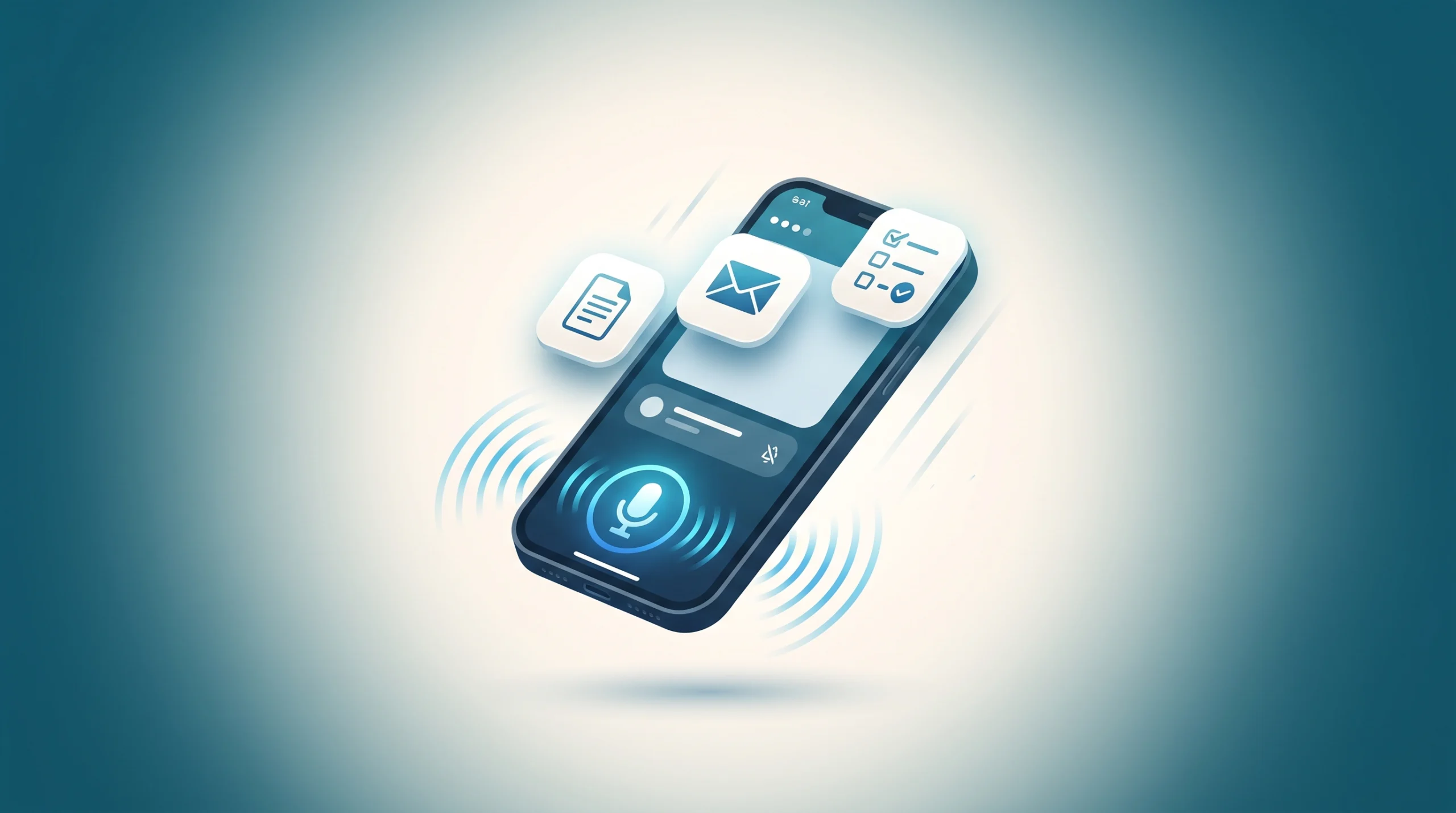
On September 23, 2026, OpenAI brought its desktop-only “Work” tab to the ChatGPT mobile app, controllable entirely by voice. Plus and Pro users can now say a task out loud — “summarise my unread emails”, “draft a reply to this message”, “create a one-page project update” — and ChatGPT will complete it as a real multi-step task, not just answer a spoken question. To use it: update your app, open the Work tab, tap the voice icon, and speak your task directly instead of typing it. Free and Go users get a lighter version through plugins and connected apps instead of the full Work tab.
Last verified: September 26, 2026. Feature availability rolls out gradually, so if you don’t see it yet, force-update your app and check again in a few days.
In late September 2026, OpenAI brought a feature that was previously desktop-only to the ChatGPT mobile app: the ability to trigger real, multi-step work tasks — drafting a document, writing an email, summarising a pile of messages — just by talking to your phone. This isn’t the same as the voice conversations ChatGPT already had; this is voice controlling an actual agent that goes and does the task, not just chats back.
If you’ve opened the app and seen a “Work” tab that wasn’t there before, this guide walks through exactly what it does and how to actually use it for real tasks, not just the announcement headlines you’ve probably already seen.
Key Takeaways
- Voice-triggered work tasks (not just voice chat) are now on mobile, not just desktop
- Available to Plus and Pro subscribers through the Work tab; Free and Go users get plugins/connected apps instead
- Works best for quick, well-defined tasks during commutes or between meetings — not for detailed documents needing careful wording
- Always review before sending — voice can misread names, numbers, and technical terms, especially in noisy environments
- Tasks started on mobile can be continued on desktop without losing context
What Actually Changed
Before this update, the Work tab — where ChatGPT can create documents, build simple websites, generate presentations, or browse the web to complete a task — was only available on desktop. Now it’s on mobile too, and you can trigger it entirely by voice instead of typing.
A few specific things came with this update:
- Voice-triggered work tasks. Say what you need — draft an email, summarise your unread Slack messages, create a document — and ChatGPT starts working on it in the Work tab.
- Richer voice responses. Voice conversations now come with more detailed text output alongside the spoken reply, instead of just a short spoken summary.
- Easier switching between voice and text. You can start talking, then switch to typing mid-conversation without losing context.
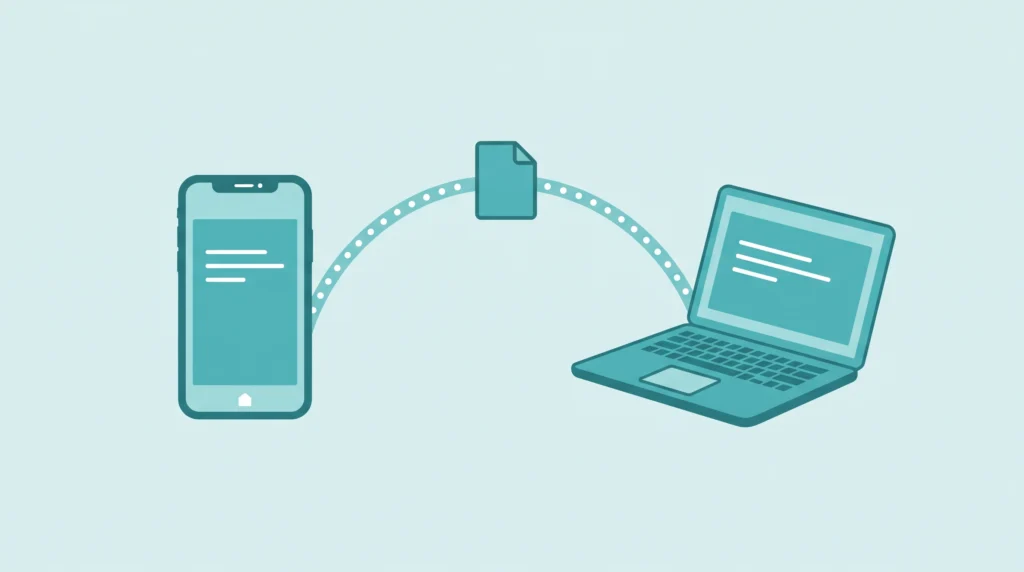
- Cross-device continuation. Start a task on your phone during your commute, then pick it up on the desktop later without starting over.
This is available to Plus and Pro subscribers through the Work tab. Free and Go users get access to plugins and connected apps instead, which is a lighter version of the same idea.
Before vs. After: What Actually Changed
| Before (pre-Sept 23, 2026) | After (Current) | |
|---|---|---|
| Work tab access | Desktop only | Desktop + mobile |
| Triggering a task | Typing required | Voice or typing |
| Voice conversations | Spoken reply only | Spoken reply + richer text output |
| Switching modes | Limited | Switch voice ↔ text mid-conversation. |
| Device continuity | Task tied to one device | Start on mobile, continue on desktop. |
| Available to | N/A | Plus & Pro (Work tab); Free & Go (plugins/connected apps) |
Step 1: Update the App and Find the Work Tab
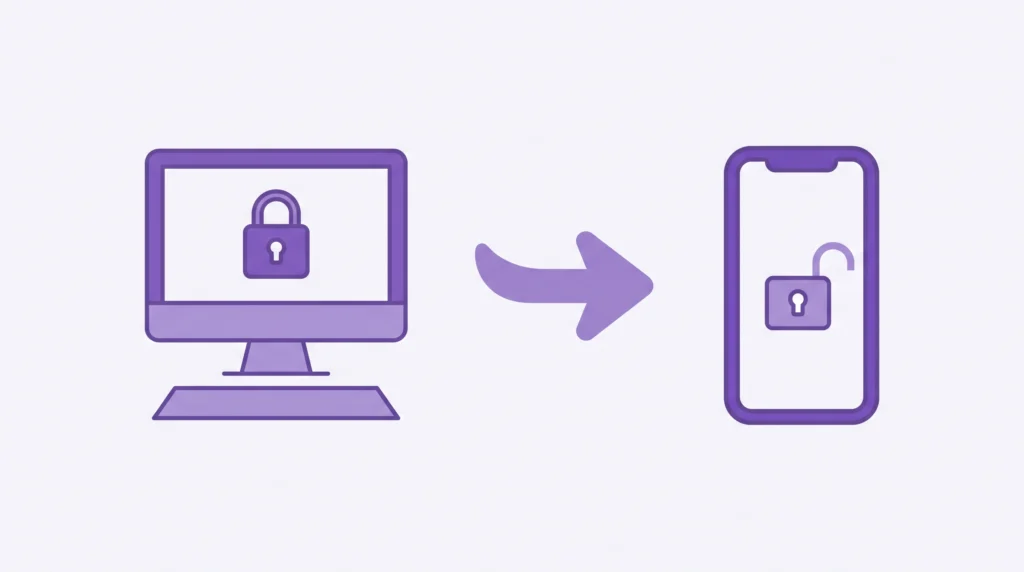
Make sure your ChatGPT app is updated to the latest version — this feature won’t appear on an outdated build. Once updated, look for the Work tab, typically in the bottom navigation or accessible from the main chat screen depending on your account type.
If you don’t see it and you’re on a Plus or Pro plan, check that your app has fully updated and restart it — rollouts like this sometimes reach accounts gradually over the first week or two.
Step 2: Start a Voice Session for a Real Task
Rather than starting a casual voice chat, go directly into the Work tab and use the voice icon there. This tells ChatGPT you want it to actually complete something, not just talk.
Example prompt to say out loud:
“Summarise the emails I got yesterday, and only tell me the ones that actually need a reply.”
This is different from asking a general voice question — it triggers an actual multi-step task (checking your connected inbox, filtering, summarising) rather than a single spoken answer.
Step 3: Use It for Real Commute or In-Between Moments
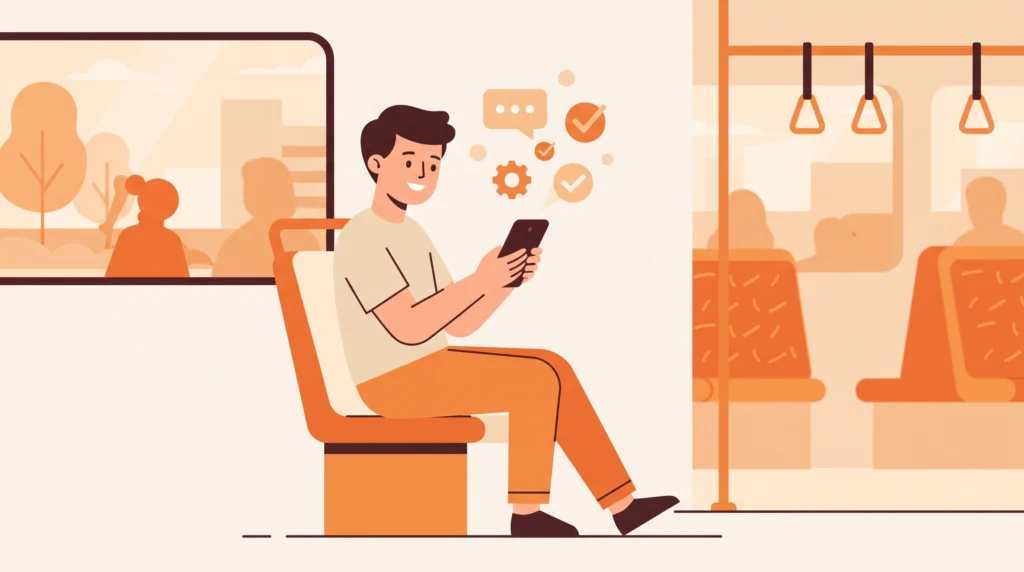
The genuinely useful part of this update is handling small work tasks during moments when typing isn’t practical — walking, commuting, between meetings.
Practical examples to try:
- Clearing emails on your commute: “Summarise my unread emails from today and flag anything that needs a reply before noon.”
- Prepping for a meeting in 5 minutes: “Summarise the notes for my 2 PM meeting into three key points I need to know.”
- Drafting a quick reply: “Draft a reply to [person]’s email saying I can meet Thursday instead of Wednesday.”
- Turning a voice memo into a document: “I’m going to describe a project update out loud — turn it into a clean written summary I can send to my team.”
Step 4: Review Before Sending Anything
This is the step easy to skip when a task feels “done” the moment ChatGPT finishes talking. Always open the actual document, email draft, or summary in the Work tab and read it before sending or acting on it — voice-triggered tasks can occasionally misinterpret a name, date, or detail from a spoken instruction, especially in a noisy environment like a commute.
Step 5: Continue on Desktop When You’re Back at Your Computer
If a task you started on your phone needs more detailed editing — formatting a document properly, refining a longer email — open ChatGPT on desktop and continue the same conversation rather than starting fresh. This cross-device continuation is one of the more genuinely useful parts of the update, since it means voice on mobile can be the “quick capture” step and desktop can be the “polish” step.
What This Is Good For (and What It Isn’t)
Good for:
- Quick, well-defined tasks you’d otherwise put off until you’re at a computer
- Summarising or triaging messages when you don’t have time to read everything
- Capturing an idea or update by voice before you forget it, then turning it into a document later
Not ideal for:
- Highly detailed or sensitive documents where you need to review every word as it’s written, not after the fact
- Noisy environments where voice recognition is more likely to introduce errors
- Tasks requiring nuanced judgement calls you’d rather make by typing and thinking through carefully
Who This Actually Helps (and Who Can Skip It For Now)
This is genuinely useful if:
- You regularly have small work tasks piling up during commutes, walks, or gaps between meetings
- You already use ChatGPT’s Work tab on desktop and want the same capability without opening a laptop
- You’re comfortable reviewing and editing AI-drafted content rather than sending it unedited
You can skip it for now if:
- You’re on a Free or Go plan and mainly want document/email drafting — you’ll hit the plugin/connected-app ceiling quickly compared to the full Work tab
- Your work involves highly sensitive documents you’d rather draft carefully by typing from the start
- You’re often in loud environments where voice accuracy would cost you more time correcting errors than it saves
Common Mistakes to Avoid
Treating every voice-triggered draft as final. Voice tasks are a fast first pass, not a finished product — always review before sending, especially for anything going to a client, boss, or important contact.
Trying to dictate very long, complex documents in one go. For anything requiring detailed structure, it’s often faster to use voice for a rough capture, then refine and organise it with text afterward, either on the same device or after switching to desktop.
Using it in loud environments and expecting perfect accuracy. Like any voice tool, background noise increases the chance of misheard words, particularly names, numbers, and technical terms — double-check these specifically.
Not checking which plan you’re on. If you don’t see the Work tab, confirm you’re on a Plus or Pro plan — Free and Go users have a different, more limited feature set (plugins and connected apps) rather than the full Work tab experience.
Frequently Asked Questions
Do I need a paid ChatGPT plan to use this?
Yes — the full Work tab with voice-triggered tasks is currently available to Plus and Pro subscribers. Free and Go users get access to plugins and connected apps instead, which covers some similar ground but isn’t the same full agentic Work tab experience.
Does this work on both iPhone and Android?
Yes, the update applies to the ChatGPT mobile app generally, though as with most staged rollouts, make sure your app is fully updated to the latest version if you don’t see the feature immediately.
Is this the same as the ChatGPT voice mode that already existed?
No — standard voice conversations are for talking back and forth with ChatGPT. This update specifically brings the Work tab’s ability to complete actual multi-step tasks (drafting documents, summarising messages, building simple sites) to mobile, triggered by voice instead of typing.
Can it access my actual email and Slack messages?
Only if you’ve connected those accounts/apps within ChatGPT. Without connecting them, tasks referencing “my emails” or “my Slack messages” won’t have anything real to work from.
Is my data safe when I connect apps like email or Slack?
Connecting any app to an AI assistant means it can access what you’ve given it permission to see. Review OpenAI’s specific data handling policy for connected apps before linking anything containing sensitive personal or business information, and only connect what you’re comfortable with.
The Bottom Line
This update turns small, easy-to-postpone work tasks — clearing emails, prepping for a meeting, capturing a quick idea — into something you can knock out by talking during moments you’d otherwise waste. It’s not a replacement for careful, detailed work at a desk, but for the in-between moments of a busy day, it’s a genuinely useful addition. Start with low-stakes tasks like email summaries to get a feel for it, then build up to using it for actual drafts once you trust how it performs for your specific use cases.
Looking for more ways to use AI to save real time? Check out our guide on how to use ChatGPT to write a YouTube script.