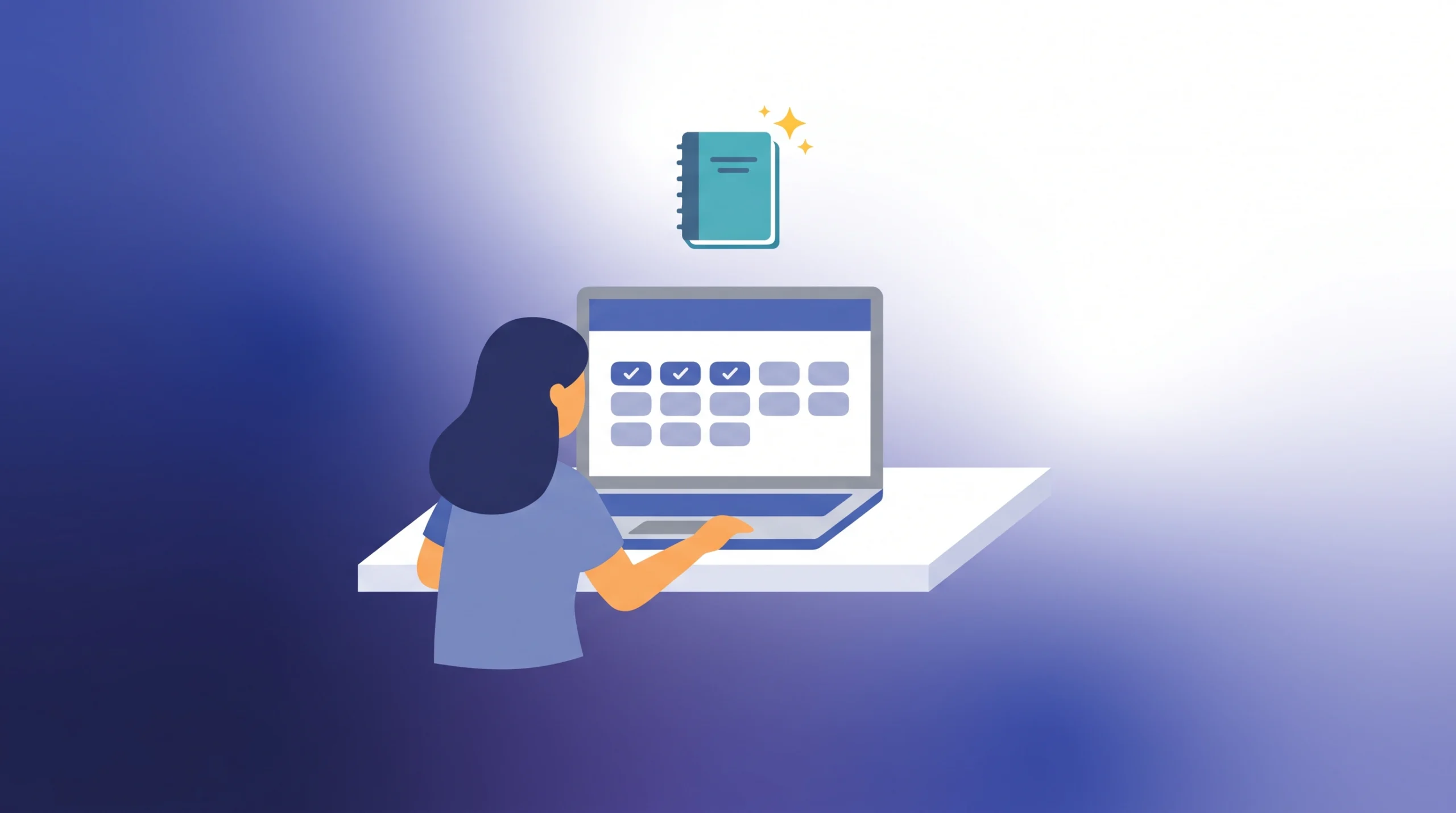
You have a big exam in two weeks. You also have a folder full of lecture slides, a half-finished set of notes, and a vague sense that you should “start studying.” The hardest part usually isn’t studying. It’s knowing what to study first.
That’s the gap Google built study notebooks in the Gemini app to fill. You tell Gemini what you’re trying to learn, give it your own materials, and it builds bite-sized lessons around the things you already know and the things you don’t. Most of the coverage so far just announces the feature. This guide is the practical version: how to set one up, which prompts to use, and a day-by-day plan you can follow for the next two weeks.
Quick Answer
To use Gemini study notebooks, open the Gemini app on the web, sign in, open the sidebar, choose New notebook under Notebooks, and pick Study and learn. Upload your notes, slides, PDFs, or links, tell Gemini which exam you’re preparing for and when it is, and take the diagnostic quiz it offers. Use the results to build a 14-day plan that spends your first few days on your weakest topics, then mixes in practice quizzes and review. The most important rule: keep checking what Gemini teaches you against your original course material, because a progress score can make you feel more ready than you are.
Google is still rolling this feature out, so what you see can differ by account, school, and region. If you don’t see notebooks in your sidebar, that’s the first thing to check.
Key Takeaways
- Study notebooks turn your own notes and PDFs into lessons, quizzes, flashcards, and a progress dashboard.
- The best way to start is a diagnostic quiz, so your plan targets weak spots instead of what you already know.
- Spend the first week on your weakest topics and the second week on mixed practice and review.
- Keep a “mistake log” of every question you miss. It’s the most valuable study material you’ll create.
- Don’t trust a progress label on its own. Spot-check lessons against your original materials.
- School and work accounts may need an administrator to turn the feature on.
What Are Gemini Study Notebooks?
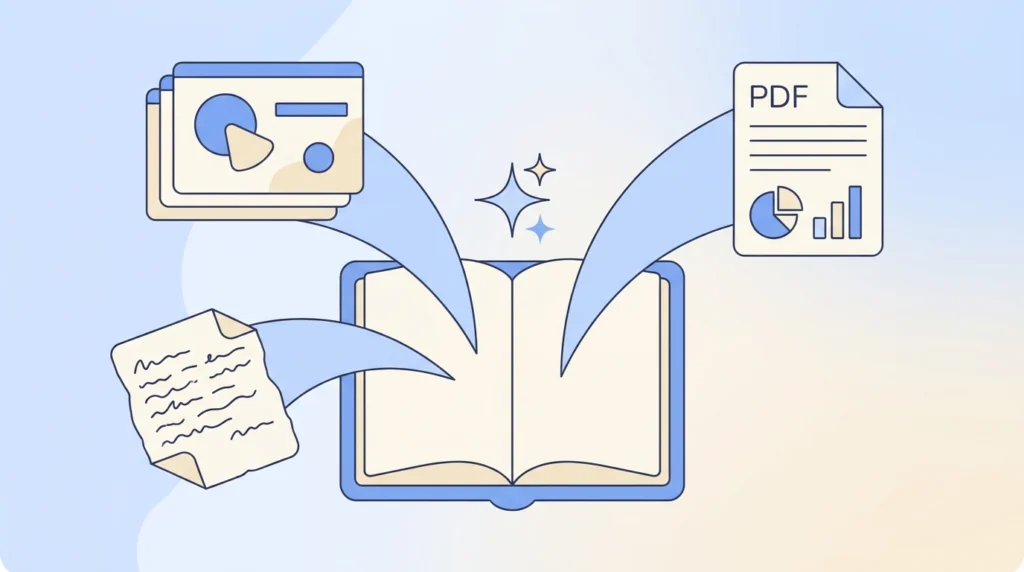
Think of a study notebook as a dedicated workspace inside the Gemini app for one subject or one exam. Instead of chatting with Gemini and losing the thread, everything lives together: your uploaded sources, the lessons it generates, your quiz results, and a dashboard that shows where you’re strong and where you’re not.
According to Google, you tell Gemini what you want to learn, and it creates lessons matched to your strengths and gaps, tests you with practice quizzes, and tracks your progress so you can see what to prioritise next. You can upload things like notes, PDFs, and websites to ground the lessons in your real course material. Coverage of the launch also points to support for standardised test prep, including exams like the SAT and GRE, where it can run a diagnostic and suggest a study plan from the results.
Study notebooks also connect with Gemini Notebook (the tool formerly known as NotebookLM), so you can turn the same materials into flashcards, summaries, and other study aids without uploading everything again.
Study Notebooks vs. a Regular Gemini Chat
A normal chat is great for a quick question, but it forgets context, doesn’t track your progress, and won’t tell you what to study next. A study notebook is built for a longer project.
| Regular chat | Study notebook | |
|---|---|---|
| Uses your own notes and PDFs | Only if you paste or attach them each time | Keeps your sources in one place |
| Tests you | Only if you ask | Practice quizzes built in |
| Tracks progress | No | Progress dashboard |
| Plans what to study next | No | Lessons based on your gaps |
| Best for | One-off questions | A multi-day exam push |
Before You Start: Gather Your Materials
A notebook is only as good as what you put in it. Spend ten minutes collecting:
- Your syllabus or exam outline (this tells Gemini what’s actually fair game)
- Lecture slides and class notes
- Any practice tests or study guides your teacher gave you
- The chapters or readings you’ll be tested on
If your files are scanned images rather than selectable text, results tend to be worse. A quick test: try highlighting a sentence in the PDF. If you can’t, find a text version if you can.
Step 1: Create the Notebook
Open the Gemini app on the web and sign in. Open the sidebar, find Notebooks, select New Notebook, and choose Study and Learn. Name it after your exam, something like “Bio Final” or “SAT Prep”, so you can find it later.
If you’re on a school or work account and don’t see the option, your administrator may need to enable Gemini and Gemini Notebook for your organisation. That’s a school setting, not something you can change yourself.
Step 2: Add Your Sources and Tell Gemini the Goal
Upload your materials, then give Gemini the full picture. The more specific you are, the better the plan.
Prompt to try:
“I have a [subject] exam on [date], which is 14 days away. It covers [chapters or topics]. I can study about [60] minutes a day. I’ve uploaded my notes, slides, and the syllabus. Before you teach me anything, give me a short diagnostic quiz so we can find out what I already know and what I don’t.”
Notice that you’re asking for the diagnostic first. That’s the step most people skip, and it’s what makes the rest of the plan worth following.
Step 3: Take the Diagnostic Quiz Honestly
Answer without looking anything up. If you guess, say so. The goal isn’t a good score. It’s an accurate map of your weak spots. A low result on day one is useful information, not a bad sign.
Step 4: Turn the Results Into a 14-Day Plan
Once you have your results, ask Gemini to build the schedule.
Prompt to try:
“Based on my diagnostic results, build a 14-day study plan. Put my weakest topics in the first week. Each day should include a short lesson, a practice quiz, and a quick review of earlier mistakes. Add one lighter day in each week, and finish with timed practice in the last few days.”
Here’s a sample structure to compare against what Gemini gives you. This schedule is my suggestion, not an official Google plan, so adjust it to your exam:
| Days | Focus |
|---|---|
| 1 | Set up the notebook, upload sources, and take the diagnostic. |
| 2 | Review results and rank topics from weakest to strongest. |
| 3-5 | Weakest topics: short lesson, then quiz, one topic at a time |
| 6 | Mixed quizzes across everything covered so far; start your mistake log. |
| 7 | Light review day |
| 8-10 | Second-weakest topics, plus flashcards for key terms |
| 11 | Timed practice session |
| 12 | Redo every question in your mistake log. |
| 13 | Full mixed practice, simulating exam conditions |
| 14 | Light review, then rest. Sleep matters more than one more hour of cramming |
Step 5: Run Each Study Day the Same Way
Consistency makes this easier. Each day, try this loop:
- Learn: ask for a short lesson on that day’s topic.
- Practice: take the quiz and answer before you look at any explanation.
- Log: write down every question you missed and why.
- Review: ask Gemini to explain the ones you got wrong, then try them again.
Prompt for the daily lesson:
“Teach me [topic] in a short lesson using my uploaded notes. Then ask me 5 questions one at a time, wait for my answer before moving on, and explain anything I get wrong.”
Prompt for your mistake log:
“Here are the questions I missed today: [list them]. Group them by the underlying concept I’m confused about, and give me two new practice questions for each concept.”
Step 6: Use Flashcards and Summaries for the Facts
Some material is pure memorisation: vocabulary, formulas, dates, and definitions. Since study notebooks connect with Gemini Notebook, you can generate flashcards and summaries from the same sources. Use these for the short bursts of review in your light days and right before bed, and keep the notebook lessons for the concepts that need real understanding.
Step 7: Check Gemini Against Your Own Materials
This step is the one that separates studying from the feeling of studying. One education-technology writer flagged exactly this risk: students can develop an illusion of mastery if they accept generated lessons and progress labels without checking their understanding against the original course material.
Two simple habits help:
- Ask for the source. Try: “Which part of my uploaded notes covers this?” If Gemini can’t point to it, double-check the answer yourself.
- Test yourself without the tool. Once a week, close the app and try to explain a topic out loud or write it from memory. If you can’t, the dashboard is flattering you.
Who Study Notebooks Are Best For (and Who Can Skip Them)
A good fit if:
- You have a clear exam date and a pile of materials but no plan
- You tend to study what you already know because it feels easier
- You like short, structured sessions better than long reading marathons
You might not need them if:
- Your exam is tomorrow. A quick summary of your notes will serve you better than a 14-day system
- You already have a strong study routine that works for you
- Your school blocks the feature or has rules against AI study tools. Check your syllabus first
Common Mistakes to Avoid
Skipping the diagnostic. Without it, you’re guessing what to study, which is exactly the problem you’re trying to solve.
Uploading everything you own. A focused notebook with the right chapters beats a giant dump of every file from the semester. Keep one notebook per exam.
Trusting the progress dashboard blindly. It reflects how you did on Gemini’s questions, not how you’ll do on your teacher’s exam.
Never practicing under real conditions. Do at least one timed session without notes or hints before the actual test.
Using AI as a shortcut around the hard parts. If a quiz question stumps you, resist the urge to read the answer immediately. Struggling for a minute first is part of how memory works.
Ignoring your school’s AI policy. Using AI to study is generally different from using it to complete graded work, but rules vary. If you’re not sure, ask your teacher.
Frequently Asked Questions
Are Gemini study notebooks free?
Plan requirements aren’t obvious in the materials I checked, and Google is still rolling the feature out, so I can’t promise your account has access. Open the Gemini sidebar and see whether Notebooks appears. School and work accounts may depend on an administrator.
Do I need NotebookLM or Gemini Notebook to use them?
No, study notebooks work inside the Gemini app. They connect with Gemini Notebook (formerly NotebookLM), which is useful if you want flashcards, summaries, or other study aids from the same materials.
Can study notebooks help with the SAT or GRE?
Coverage of the launch says they support standardized test prep, including exams like the SAT and GRE, by running a diagnostic and building a plan from your results. Always check the official test’s current format and rules separately.
What can I upload?
Google says you can use sources like notes, PDFs, and websites. Text-based files tend to work better than scans.
Can teachers use this with a class?
Google is bringing study notebooks into Google Classroom, where teachers can assign notebooks built from class materials. Students can use assigned notebooks but can’t change the sources, and the school’s admin has to enable the features.
Is it better than ChatGPT or Claude for studying?
They’re different tools. Study notebooks give you structure, tracking, and plan-building in one place. A general chatbot is more flexible for one-off questions. Many students will use both.
How accurate is it?
Like any AI tool, it can make mistakes. That’s why checking against your original notes matters, especially for formulas, dates, and definitions.
The Bottom Line
The hardest part of exam prep is deciding what to do next, and study notebooks take that decision off your plate. Upload your real materials, take the diagnostic, let the results shape a two-week plan, and keep a mistake log. Then spot-check what Gemini teaches you against your original notes so the dashboard doesn’t give you false confidence. Used that way, it’s less a shortcut and more a very organized study partner.
Want more ways to study faster? Check out our guides on the best free AI PDF summarizers and turning lecture slides into study notes with AI.